
Textr Team keeps two views of your message history. The per-number log under SMS/MMS History lists every message for one number by month, which is useful for audits and monthly reviews. The Messages page shows live conversations thread by thread, which is where your team reads and replies day to day.
View the Per-Number Log
- Go to Phone Numbers and open Overview.
- Select the SMS/MMS History tab.
- Use Select a Month to choose the period, for example August 2026.
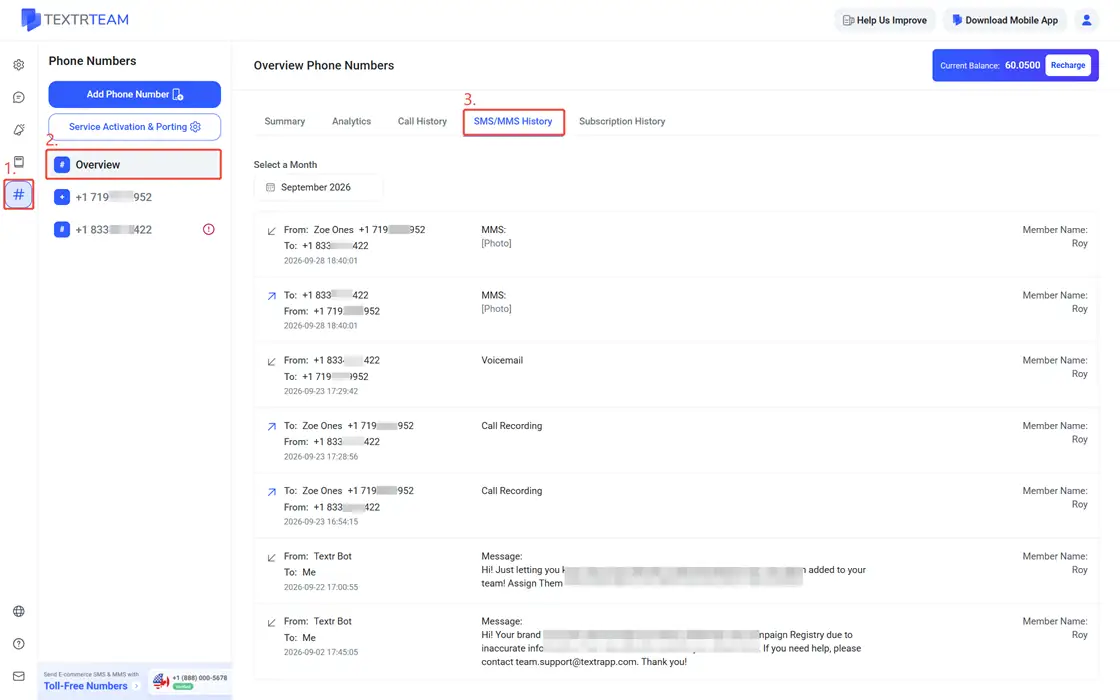
Each entry shows From, To, the timestamp, the full Message text, and the Member Name who handled it. The same log also lists call-related entries marked Call Recording and Voicemail, so message and call activity for the number appear in one place. For call details and recordings, open the call history as described in How to View Call History.
Read Conversations in Messages
- Open Messages in the sidebar.
- Use the search box to find a conversation by number or name, or scroll the list. List entries show the latest message preview and tags such as voicemail or call recording entries.
- Open a conversation to read the full thread with timestamps, including images sent as picture messages.
- Use the filter button next to the search box to narrow the list by Member/Owner, Date, Photo, or Call Recording.
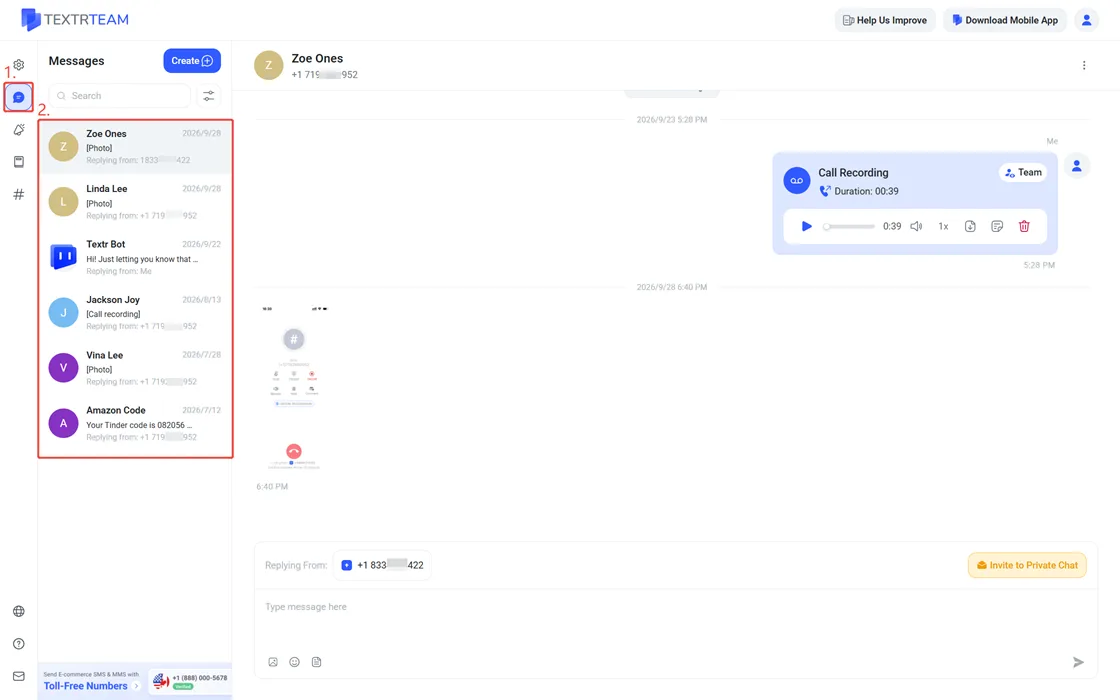
Click to learn How to Set up Call Recording and How to Send Picture Messages (MMS) with Textr Team.
Who Can See Which Conversations
Team Members can see conversations tied to numbers assigned to them. The Owner can see all conversations across the workspace. Role details are covered in Configure Your Team Workspace.