
Textr Team connects with your Shopify store through a Custom App. Once connected, your Shopify customers are imported into your Textr Team contacts and kept up to date automatically, so you can follow up with buyers and handle after-sales conversations in one place. This integration is free and currently available on the Textr Team Web app.
Note: The Shopify import entry is visible only to the Team Owner. Team members cannot see or apply for this feature.
Before You Begin
Make sure you meet the following requirements:
- Your Shopify store is on the Grow, Advanced, or Plus plan.
- You are the Team Owner in Textr Team, and you have the Owner, Admin, or App Developer role in your Shopify store (required to install the app).
- Your Team has not connected a Shopify store yet. Each Team can connect only one store, and the same store cannot be linked twice under the same Team account.
- You have your store's original domain (in the format xxx.myshopify.com). To find it, log in to your Shopify admin and go to Settings > Domains.
Warning: The Shopify Basic plan does not support Custom Apps. If your store is on Basic, upgrade to Grow, Advanced, or Plus before applying.
Connect Your Shopify Store
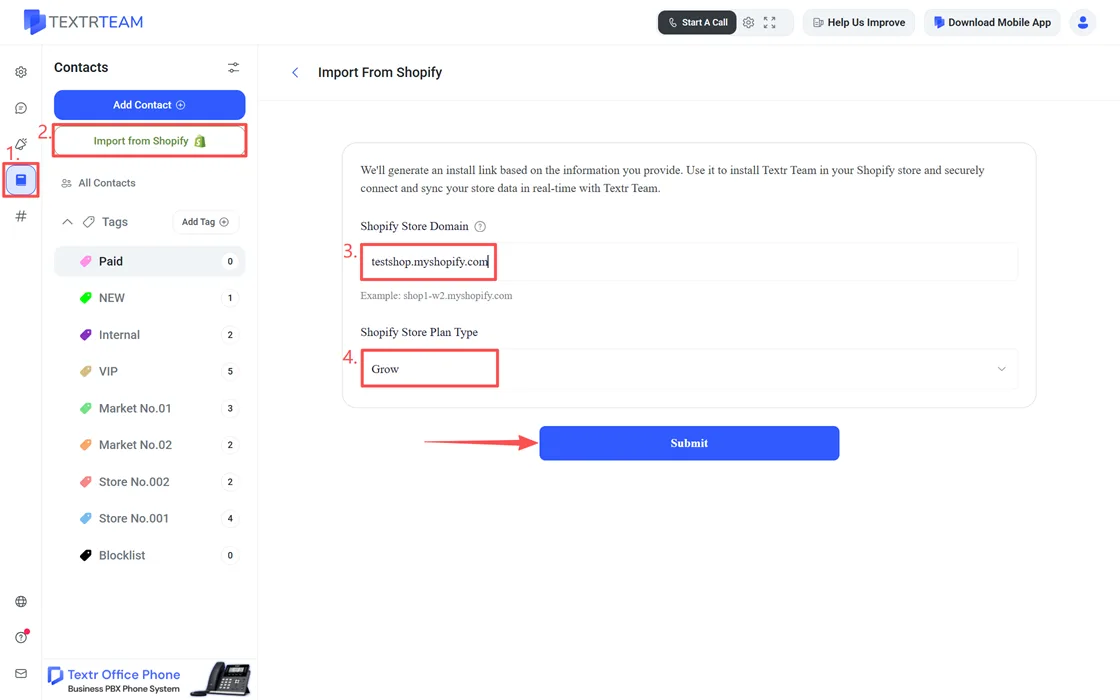
- Log in to Textr Team on the Web as the Team Owner. Go to Contacts and click Import from Shopify.
- Enter your original store domain in the Shopify Store Domain field, select your plan in Shopify Store Plan Type, then click Submit.
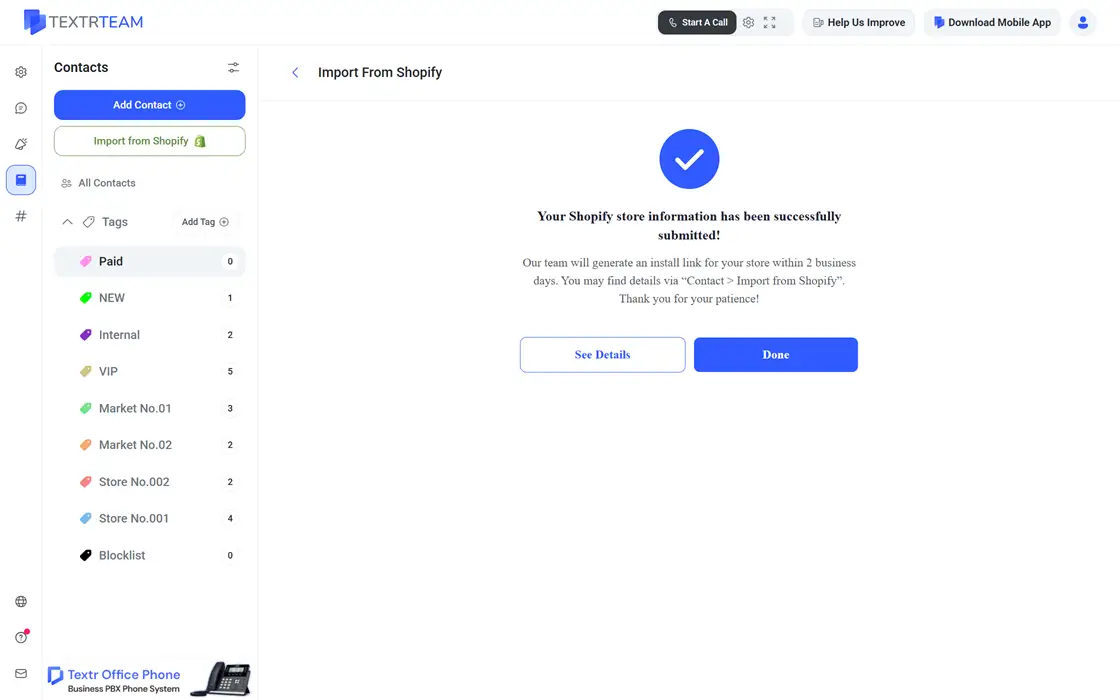
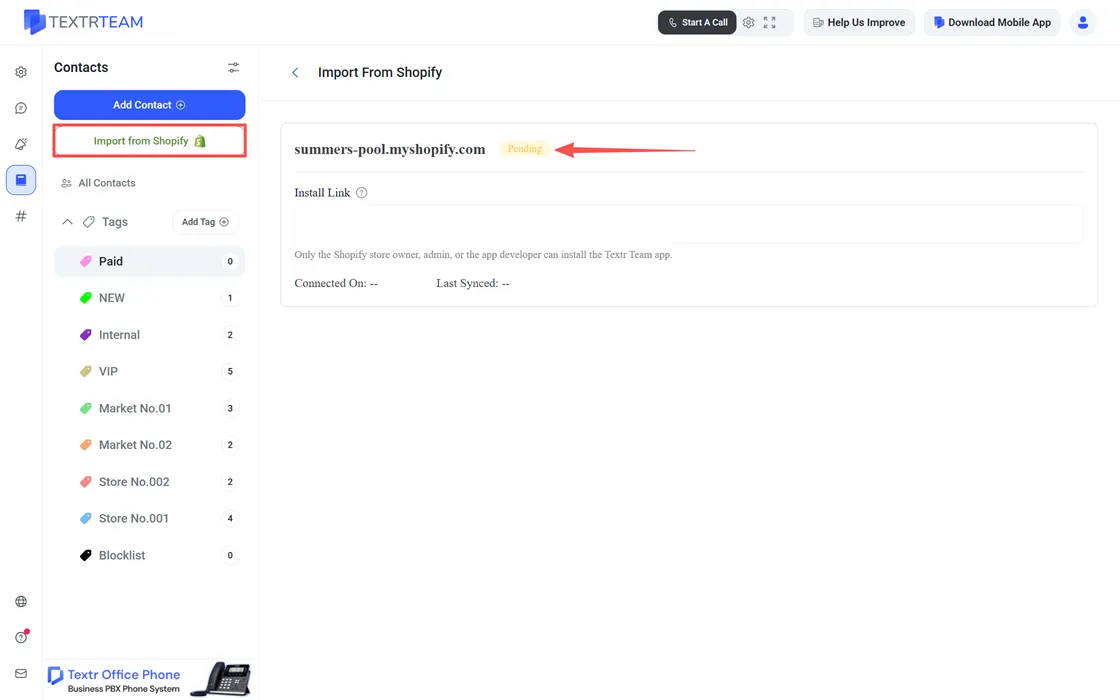
- After submitting, you will see a success message. Our team will generate an install link for your store within 2 business days. Go to Contacts > Import from Shopify and click See Detailsto check the progress and find the link.
- Open the install link, then install the Textr Team Custom App in your Shopify store and authorize access. The link works only for the store you submitted.
- After installation, the store status changes to Active and all Shopify customers are imported into Textr Team automatically.
How Customer Sync Works
- First sync: Once the store is connected, all Shopify customers are imported automatically.
- Real-time updates: New customers and changes in Shopify are synced to Textr Team automatically. No manual updates are needed.
- Store tag: A Shopify store tag is automatically created and applied to synced contacts. The tag creator shows the Team Owner's information.
- Manual sync: On the store page with Active status, click Sync Now to force a sync at any time.
Contact Subscription Status
In each contact's details, the Status field shows the customer's marketing subscription status from Shopify. This field is read-only and can only be updated by syncing from Shopify.
| Status | Meaning |
|---|---|
| Subscribed | The customer is subscribed to your store's marketing messages. |
| Unsubscribed | The customer subscribed before but has unsubscribed. |
| Not subscribed | The customer has never subscribed to your store's marketing messages. |
Contacts created manually in Textr Team are not linked to Shopify, so their Status field is left blank.
Store Connection Status
You can view your store's connection status on the Import from Shopify page. Once your custom app is installed successfully, the status will become Active.
Note: If your store status shows Uninstalled, Invalid, or Unavailable, contact us at team.support@textrapp.com for help.
Frequently Asked Questions
Need help? Contact our support team at team.support@textrapp.com.
