
Textr Team keeps usage stats for every number in your workspace: how many calls and messages you handled, how long those calls lasted, and what your SMS campaigns cost. The Analytics page turns these numbers into monthly reports you can filter, compare with last month, and export.
Where to Find Analytics
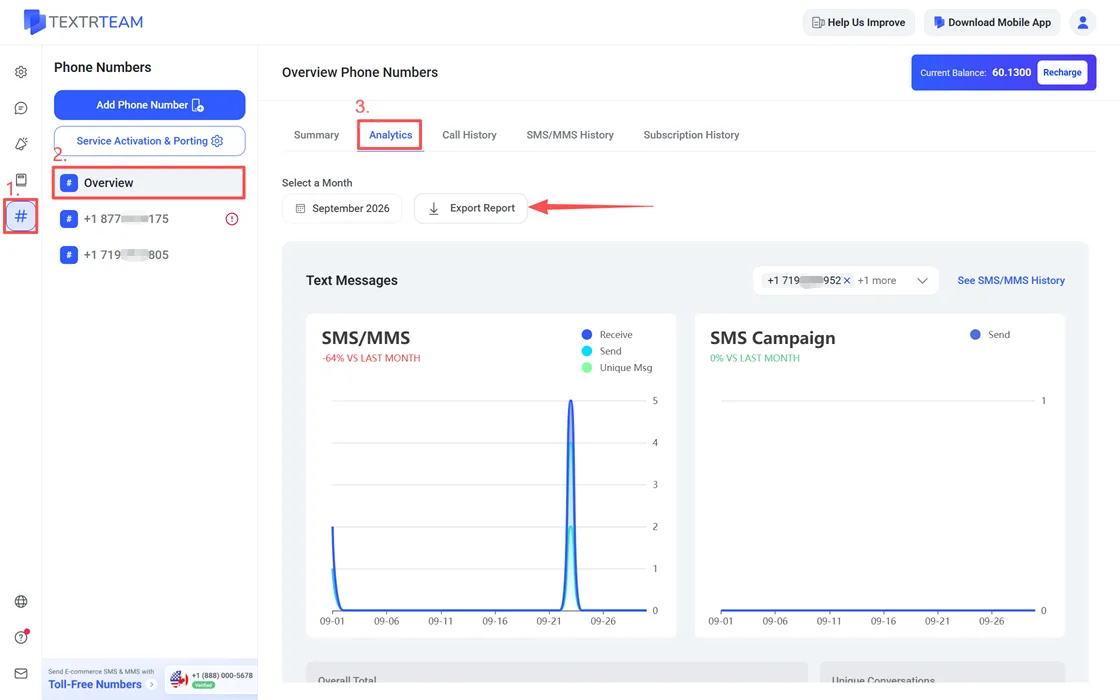
Go to # Numbers > Overview > Analytics.
At the top of the page you will find two controls: Select a Month and Export Report. Below them, the stats are grouped into two sections: Text Messages and Calls.
Read the Text Messages Section
The Text Messages section has two cards.
- SMS/MMS: Total Messages, Inbound, Outbound, and Unique Conversations for the selected period.
- SMS Campaign: Total SMS Campaigns and Total Cost in the selected period.
Each card also shows the change compared with last month, so you can tell at a glance whether volume is growing or dropping. For per-message rates behind the Total Cost figure, check the international rate table, since rates depend on the recipient's location and carrier.
Read the Calls Section
The Calls section has two cards.
- Number of Calls: Total Calls, Inbound, Outbound, and Unique Calls.
- Call Minutes: Total Minutes, Inbound, Outbound, and Missed Calls.
As with messages, each card shows the change compared with last month. If Missed Calls climbs, open the call history to see who called and when, as described in How to View Call History.
Filter by Month and Number
- Select a Month sets the reporting period for every card on the page.
- Select Number(s) narrows the stats to the numbers you pick. Leave all numbers selected to see workspace-wide totals, or pick one number to review a single line.
Export Reports and Open the Underlying History
- Click Export Report to download the analytics data for the selected month and numbers.
- Click See SMS/MMS History under the Text Messages section to open the message log behind the counts.
- Click See Call History under the Calls section to open the call log, including recordings and voicemail entries. Step-by-step instructions are in How to View Call History.
Billing Statements
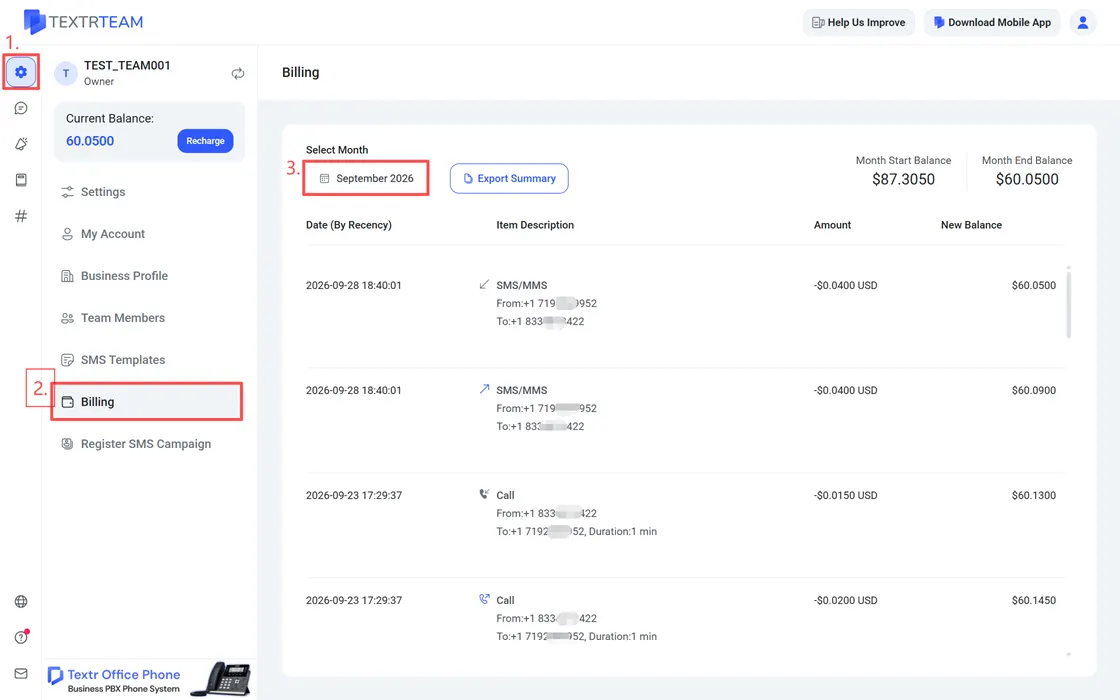
For money records rather than usage stats, go to Settings > Billing. The billing list shows each entry's Date, Item Description, and Amount, together with your Month Start Balance and Month End Balance.
- Use Select a Month under Filter to view one billing month.
- Click Export Summary to download the statement for the selected month.
Billing covers subscription fees and usage charges. For the pricing model behind these entries, see How Much Does Textr Team Cost.