
What Is Private Chat?
Private Chat is a new feature that connects Textr Team (for businesses) with Textr Go (for customers), enabling your business to communicate in a confidential and compliant environment for a smooth and seamless messaging experience.
When to Use Private Chat
Private Chat is ideal when:
You want to continue a customer conversation privately while keeping full team visibility.
You need to route or transfer customer chats internally.
You must comply with message monitoring policies or industry regulations.
You want to offer faster, more reliable responses through a direct app chat.
Who It’s For
Private Chat is designed for:
Sales teams engaging customers more personally while staying compliant.
Support agents managing private issue resolutions.
Regulated services (finance, healthcare, etc.) that need controlled access and auditable trails.
Key Benefits
Secure and Compliant – All data stays within Textr’s private ecosystem should maintain compliance and avoid sensitive content.
Faster Response Times – Conversations flow directly inside the apps, without delays or message loss.
Shared Team Access – Multiple teammates can view and reply to ongoing chats with full visibility.
Auditable Communication – Every interaction is logged within Textr Team for accountability.
Use on App and Web – Access Private Chat from both the Textr Team app and Web App to stay connected anywhere.
How to Use Private Chat
Step 1. Start a Private Chat
You can start a Private Chat from “Messages” inside the Textr Team.
In the message box, tap “Invite to Private Chat”.
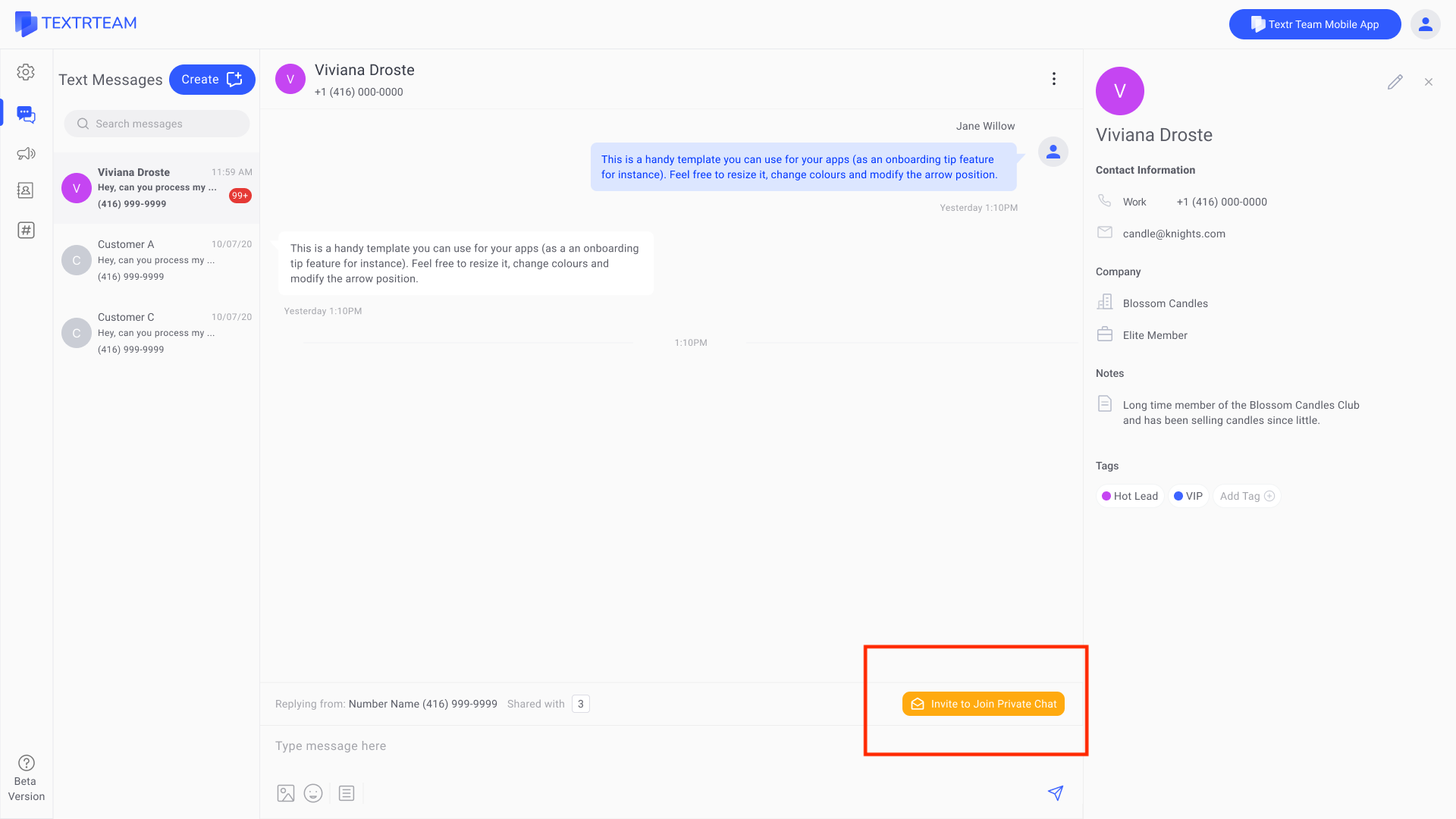
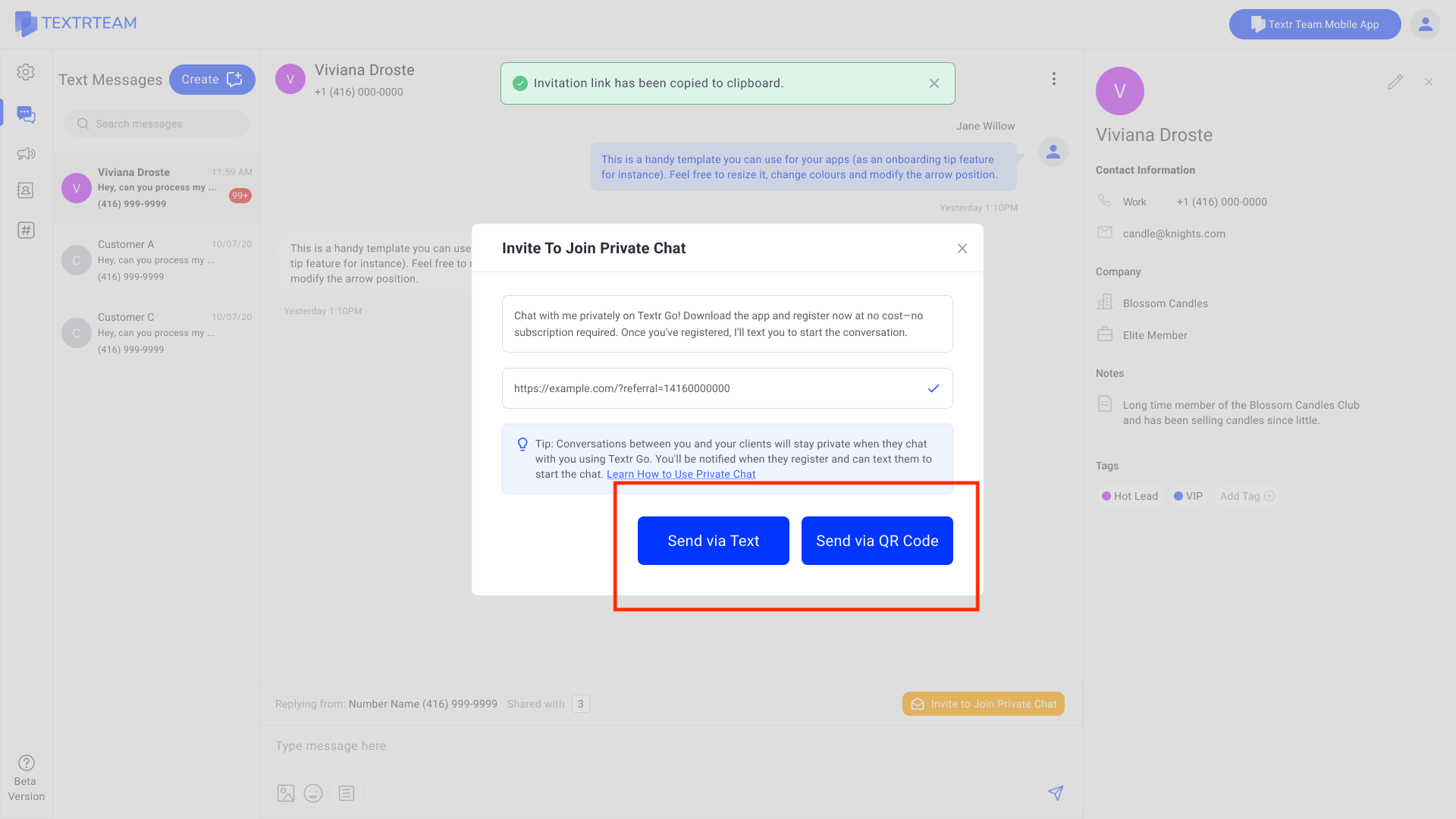
Send the invitation to your customer by text message or QR code. You can edit the message if needed, but make sure it remains compliant and does not include sensitive content.
Step 2. Customer Joins via Textr Go
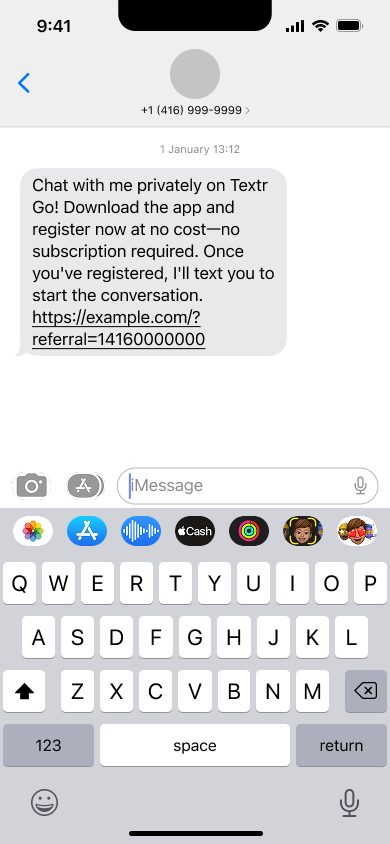
Your customer will receive the invitation message. They can download the Textr Go app (iOS/Android), or access Textr Go Web Mobile directly.
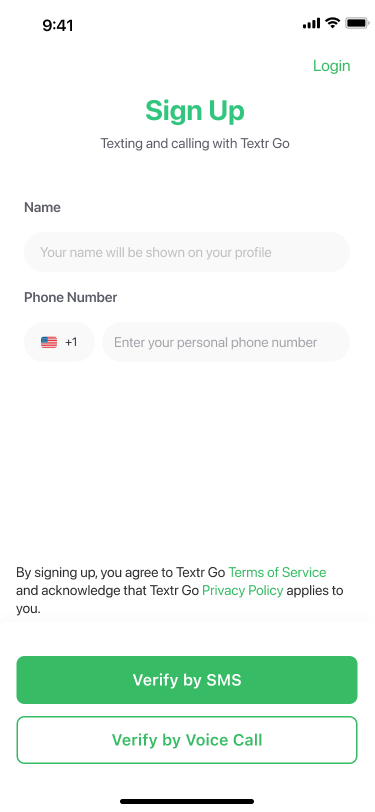
Your customer needs to register or log in with the same phone number used in the regular chat to start chatting. Once logged in, the Private Chat connection between Textr Team and Textr Go activates automatically.
Step 3. Continue the Conversation
After setup:
The chat continues seamlessly inside Textr Team (for business) and Textr Go (for the customer).
Any team member with access to the shared number can view or reply to the messages.
Team members can view or handle the chat according to their roles and permissions.
Chats remain visible in your message list with special visual indicators.
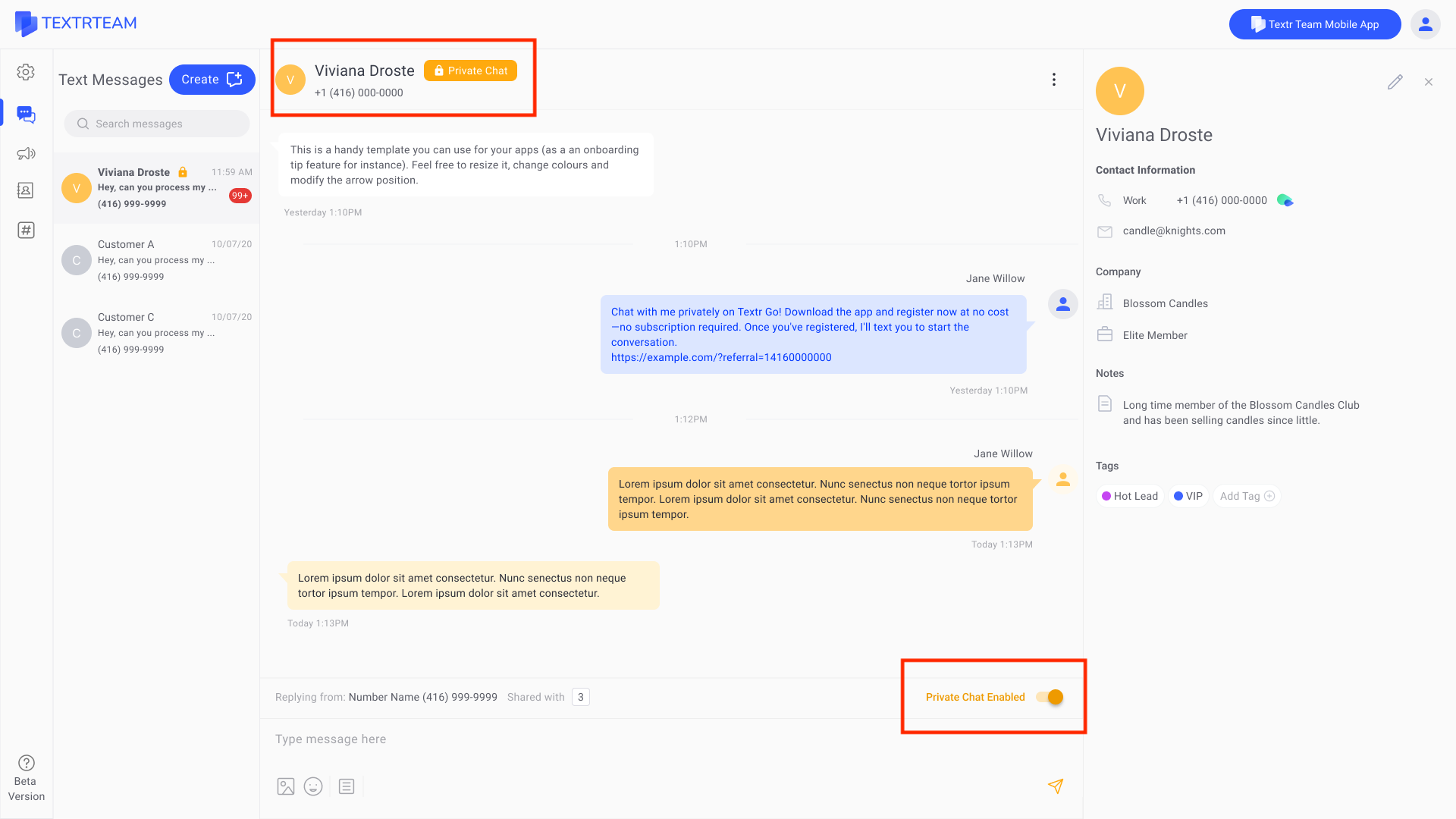
How to Differentiate Regular Chat and Private Chats?
Private Chats look slightly different from regular SMS threads:
These visual cues help you quickly distinguish Private Chat threads from regular SMS conversations.
Who Can See and Reply to the Private Chat?
Any team member with access to the shared number can view and reply to messages in a Private Chat. It works just like a shared conversation space, so your team can collaborate and respond to customers.
If multiple team members are logged in to the same shared number:
They can all see the customer conversation associated with that number.
If the conversation is in Private Chat, everyone will see it as a Private Chat.
If the customer’s previous messages are not in Private Chat, the team needs to send an invitation to the customer and start a Private Chat.
When two or more teammates are logged in, and the last message with the customer was sent through Private Chat, Private Chat will remain enabled.
How Private Chat Is Billed and Charged
Private Chat messages follow the same billing rules as regular SMS/MMS:
? Note: There’s no extra fee for enabling or using Private Chat itself.
All message history will appear in the Team Owner’s History tab as usual.
Privacy and Responsibility
All Private Chats follow Textr Team’s Terms and Conditions and Privacy Policy.
Textr Team monitors messages to help maintain security and compliance. Businesses are responsible for their own conversations and customer interactions.
Textr Team is not liable for damages, losses, or disputes arising from chat content or misuse.
FAQ
1. Can I send bulk invites to multiple customers?
No. To protect customer privacy and maintain platform integrity, bulk invites are not supported. Please invite customers individually as needed, and make sure to use this feature responsibly in accordance with Textr Team’s Terms and Conditions.
2. Why didn’t the invite message reach my customer?
The invite message may not have been delivered if it contained restricted or sensitive content that were blocked for security or compliance reasons. Please review the message content, make any necessary edits, and try sending it again.
3. Will I be notified when the customer registers on Textr Go?
Yes. Once your customer signs up or logs in, a banner notification will appear at the top of your chat window, and the chat color will change to orange.
4. How can I distinguish Private Chat from Regular Chat?
You can easily identify a Private Chat by its visual indicators. A lock icon appears next to the contact’s name, and the chat box and contact profile turn orange. You’ll also see a “Private Chat Enabled” label at the bottom of the chat window.
5. Can I switch back to regular texting after starting a Private Chat?
Yes. Simply toggle the switch from “Private Chat” back to “Regular Chat” in the conversation settings.
6. Can I send messages if the customer deactivates Textr Go?
No. You’ll receive a notification if a customer deactivates their account. You can re-invite them later through a regular chat.
7. What should I do if my customer is inactive in Private Chat?
If your customer becomes inactive on Textr Go, a status notification will appear in the chat. Messages sent through Private Chat won’t be delivered in this case. You can switch back to regular chat and send messages to them.
8. Can I block a contact in Private Chat?
Yes. Blocking a contact will prevent any further private messages from being sent or received. You can unblock them at any time in chat settings.