
Every call made or received on your Textr Team numbers is logged automatically. You can review call history on both the mobile app and the web to check missed calls, replay recordings, read voicemail transcriptions, and export monthly call reports.
Where to Find Call History
- Open Textr Team in the mobile app or web.
- Go to Numbers.
- Under Overview, select Call History.
- Select a month to see the full list of calls for that period.
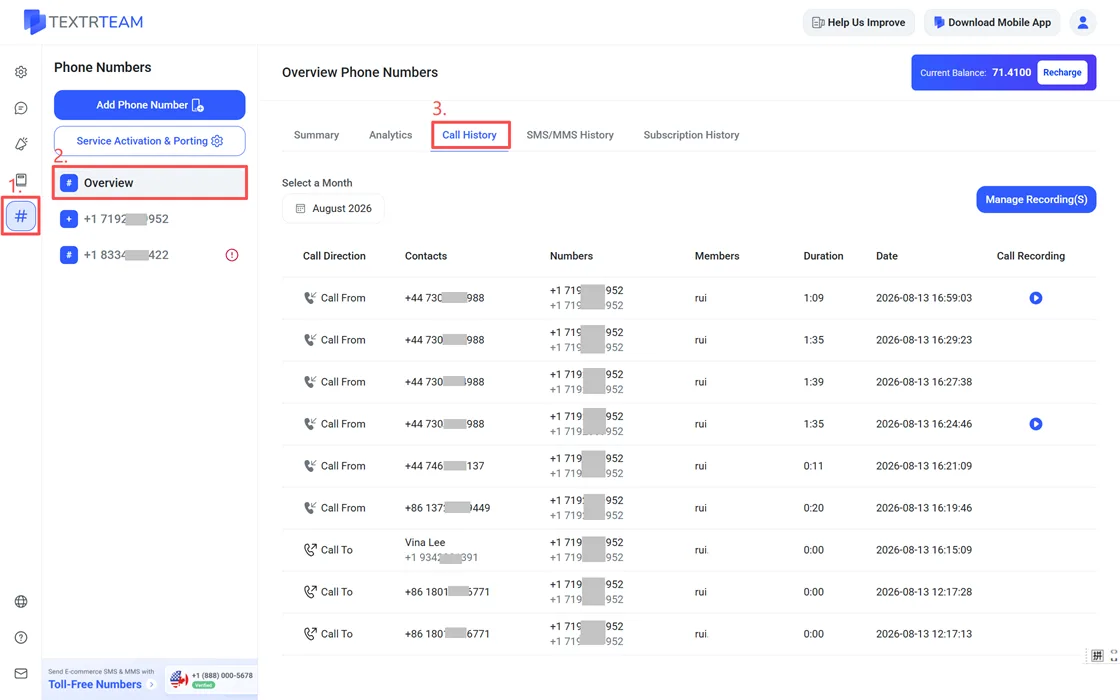
The list shows incoming, outgoing, and missed calls. You can view and manage call recordings here as well. If you want to check them in the mobile app, go to Settings > Call History.
Note: Team Members can only see the call history of numbers assigned to them. The Owner can see the call history of all numbers in the workspace.
Play Recordings and Read Transcriptions
If call recording is enabled, recorded calls show a player in the call history entry. You can play recordings directly in the app and on the web. For setup instructions, see How to Record Calls and Add Comments.
Voicemail messages appear with the audio recording and an automatic transcription, so you can read the message instead of listening. For details, see How to Set Up Voicemail and Transcription.
By default, only the person who handled the call and the Owner can see a recording. If Share Recordings with Team is enabled, every member can access recordings.
Find Recorded Calls in Messages
The Messages list offers filters for Member/Owner, Date, Photo, and Call Recording. Use the Call Recording filter to quickly find conversations that include a recorded call.
Export Call Reports
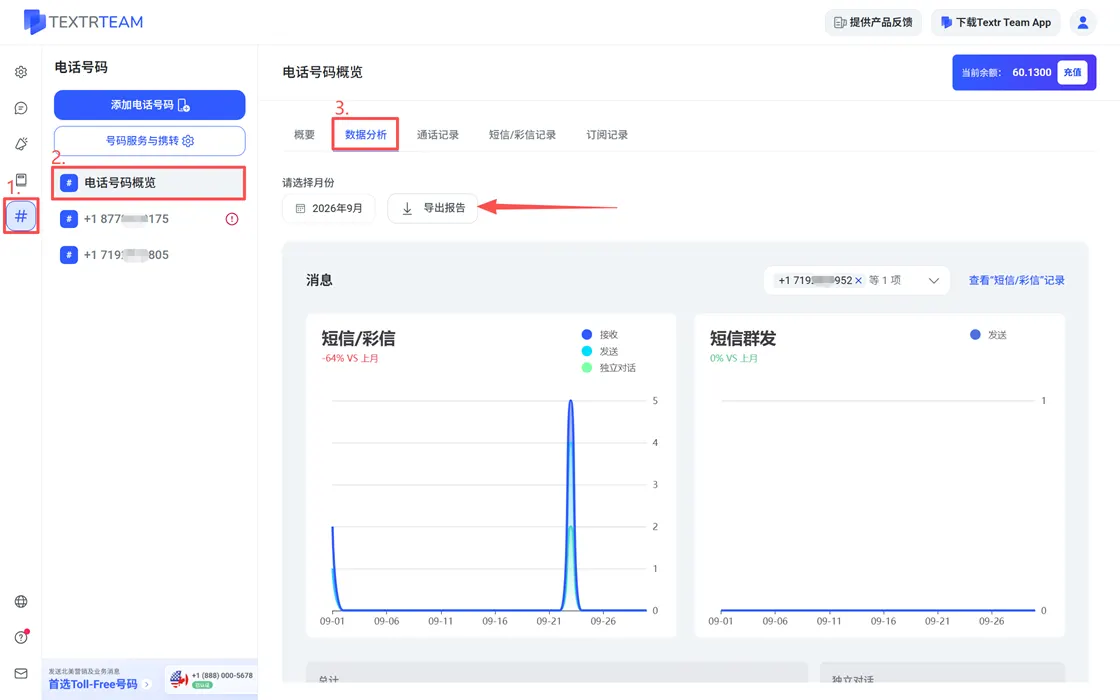
- Go to Numbers > Overview > Analytics.
- Select a month and scroll down to the Calls section.
- Filter the numbers you want to include.
- Review call stats: inbound/outbound/total calls and call minutes, unique conversations and missed calls.
If you need the report file, click Export Report to download the data.
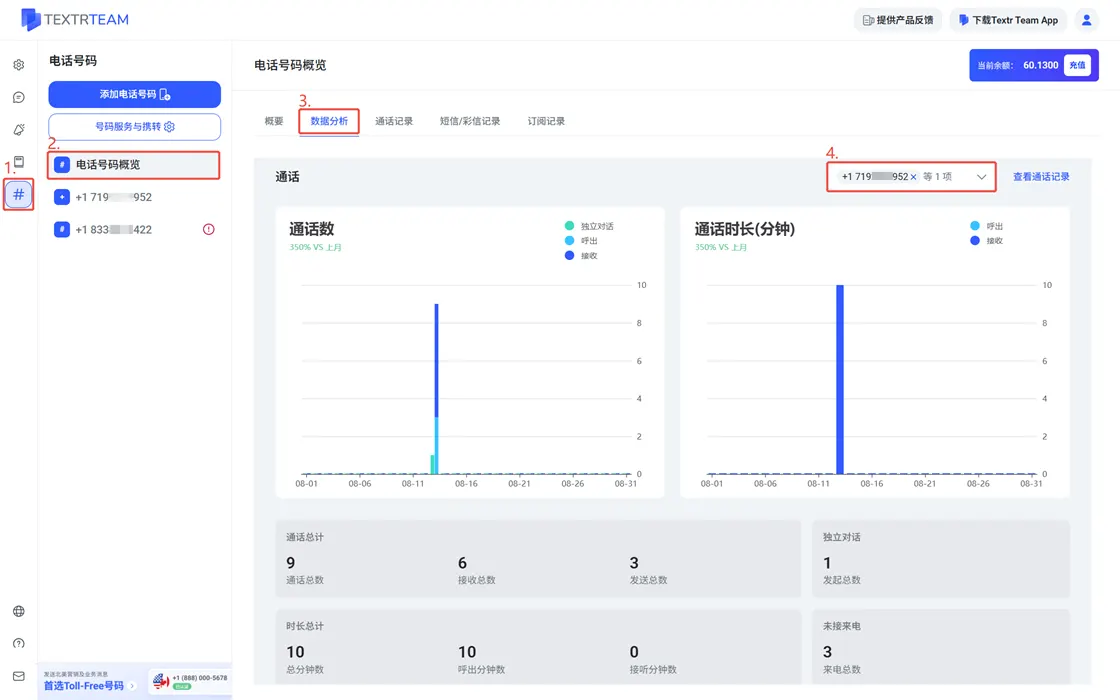
You can also jump straight to the call list from Analytics via See Call History.