
Picture messages (MMS) let you send product photos, receipts, or screenshots inside a text conversation. In Textr Team you send them from the message composer, on the web and in the mobile app.
Send an MMS on the Web
- Open Messages and click New, or open an existing conversation.
- In the To: field, add the recipient number or contact.
- In the composer toolbar, click the image icon (the first icon next to the text box).
- In the file window, choose the image and confirm. The image is attached and sent as an MMS.
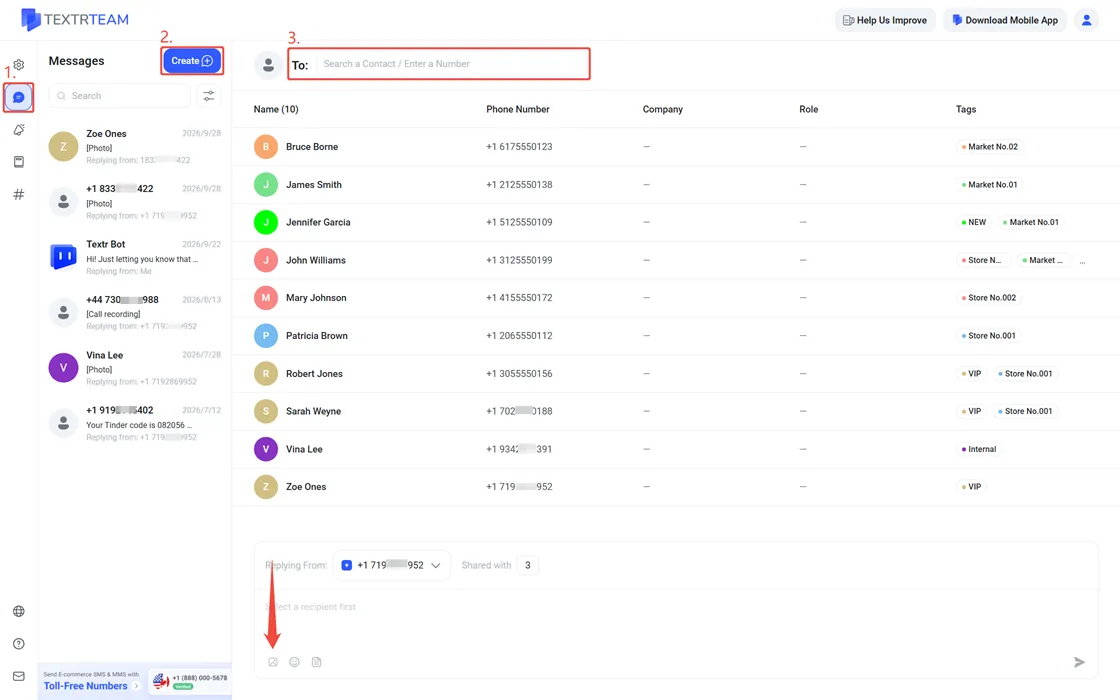
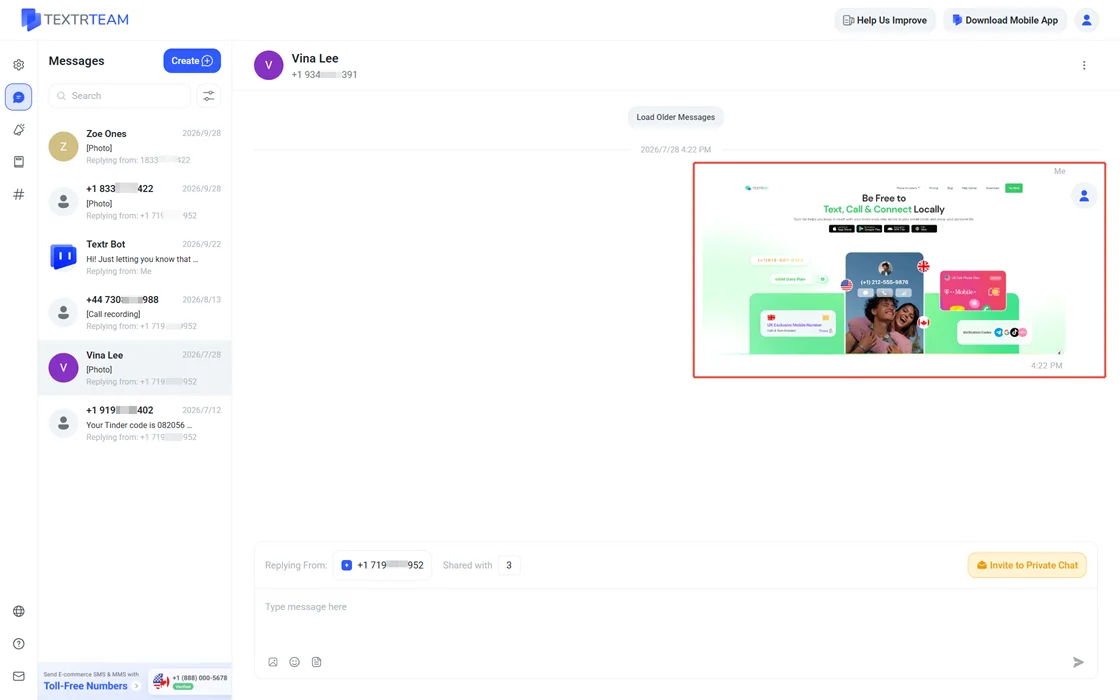
Warning: Picking an image file sends the message immediately, without a confirmation step. Make sure the To: field is correct before you choose the file, and double-check that you selected the right image.
After sending, the conversation shows the picture in the thread, and the conversation list marks the entry with a picture tag so you can spot image threads at a glance.
Supported formats and limits
- Image formats: PNG, JPG
- Maximum file size: Varies by carrier; keep images under 1MB for best delivery rates
- Video and audio files are not supported via MMS
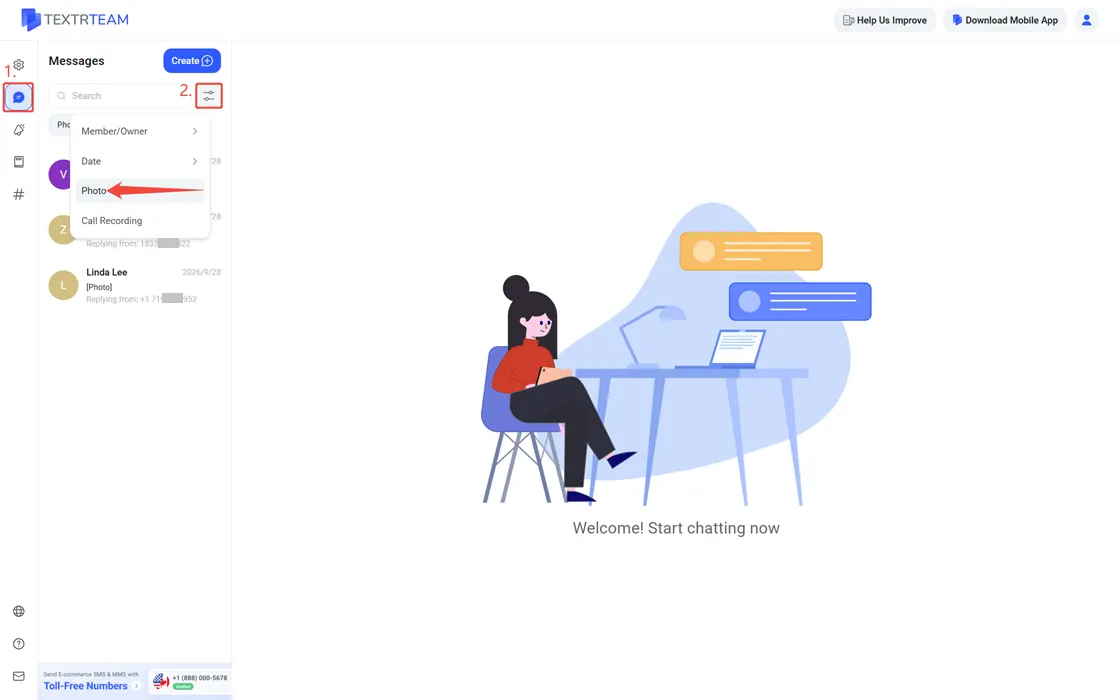
Find Picture Messages Later
In Messages, use the filter button and choose the Photo filter to list only conversations that include images. Reading the full thread is covered in How to View Message History.
Costs and Number Support
MMS is billed per message: $0.06 per outbound MMS and $0.05 per inbound MMS. For more information, follow the international rate table.
Please note that only US and Canada numbers support MMS. If you are unsure whether a picture or a plain text fits your case, see Should You Use SMS or MMS for Your Business.