
Call recording helps with training, quality assurance, and dispute resolution. In Textr Team, the Owner can enable auto-recording, control who can access recordings, and every member can add real-time comments during a call to log key details while talking.
Enable Auto-Recording
- Go to Setting > Team Settings > Call Recording.
- Toggle Enable Auto Recording.
- Under Phone Numbers, select the numbers to record. You can enable recording for specific numbers or all numbers.
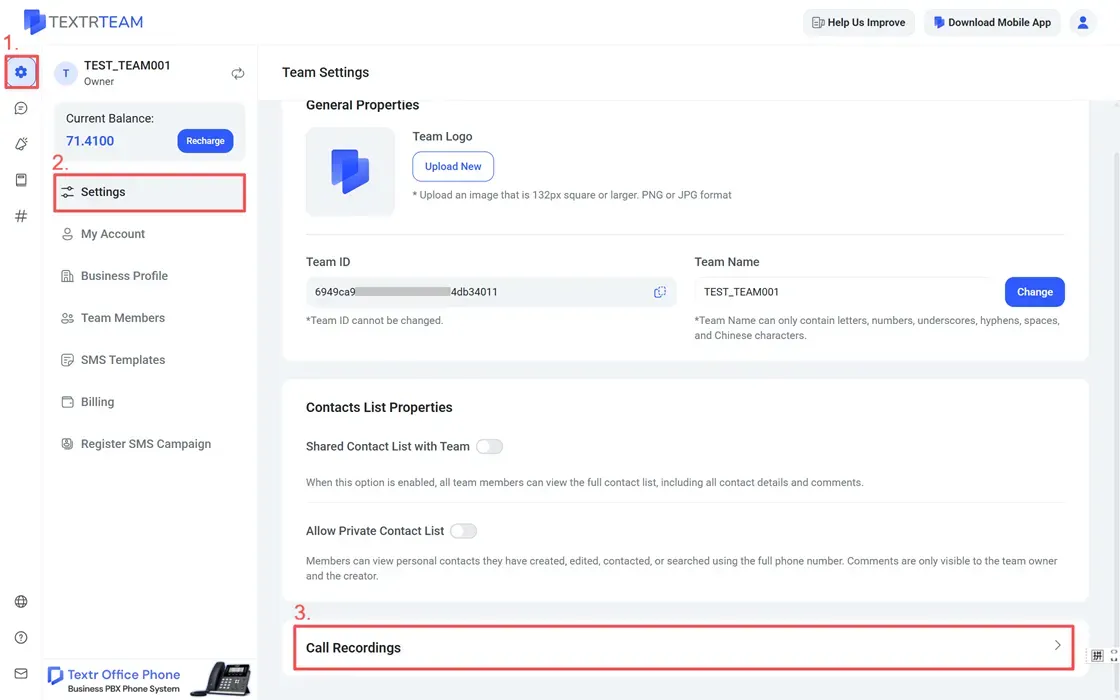
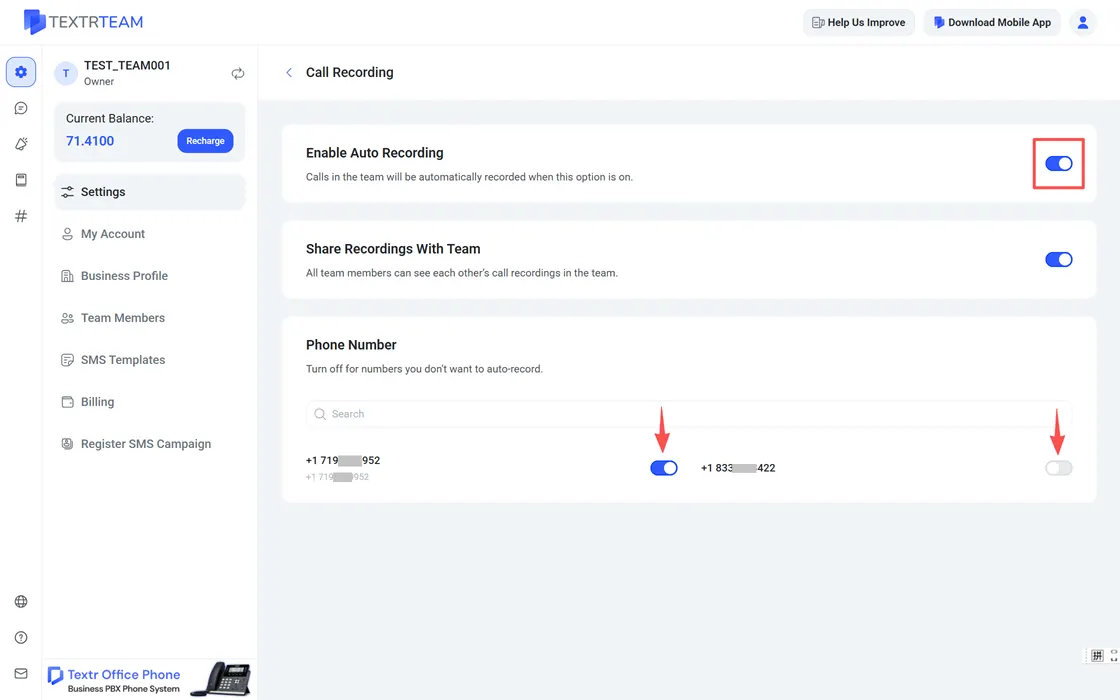
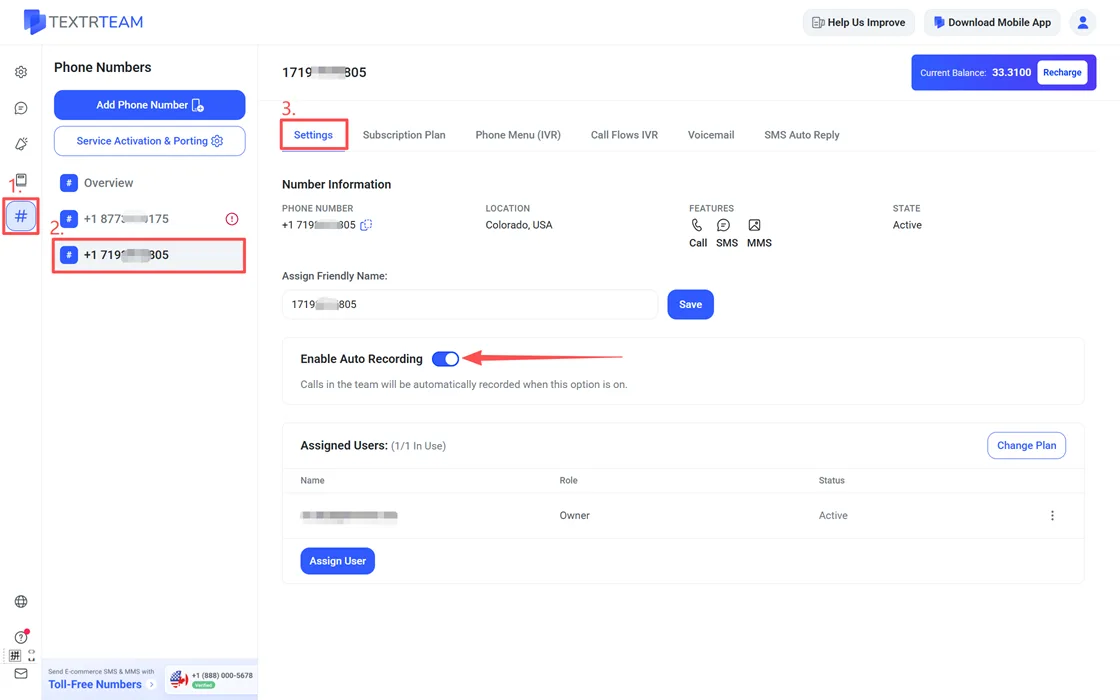
You can also toggle Enable Auto Recording for a single number under Phone Numbers > [select number] > Settings. Once enabled, all call recordings are securely stored in the cloud and synced across your devices.
Note: Only the Owner can change recording settings. Team Members cannot access these settings.
Who Can See Recordings
By default, only the person who made or received a call and the Owner can see its recording. Toggle Share Recordings with Team to make all recordings visible to every member.
Recordings appear in the call history under Call History and can be played back directly in the app and on the web. See How to View Call History.
Recording Is Disabled by Default
Warning: Call recording is disabled by default. Recordings made while auto-recording is off are stored locally on the device and can only be accessed by the person on the call (whether a Member or the Owner). Uninstalling the app permanently deletes these local recordings.
Add Comments During a Call
While on a call, you can add real-time comments that appear in the conversation history. This is useful for logging key details without writing them down separately after the call. To find calls with recordings later, use the Call Recording filter in the Messages list.
Tip: Comments are also available on contact profiles: you can add multiple comments to a contact, and each one shows who added it, the date, and the content.