
Before You Start
To make your first call with Textr Team, make sure you have:
- Downloaded the Textr Team app (Download here)
- Purchased or been assigned a phone number
- A stable internet connection (WiFi or mobile data)
Note: You can access your call history, recordings, and voicemails on the Web app, but making and receiving calls is not yet supported (coming soon). Please use the mobile app to make or receive calls. If you encounter app installation issues, please check the Download and Installation Guide.
How to Make Your First Call
- Open the Textr Team app and tap the Phone icon at the top right of the screen
- Enter the phone number using the dialer, or select a contact from your contact list
- Tap the blue call button to start the call
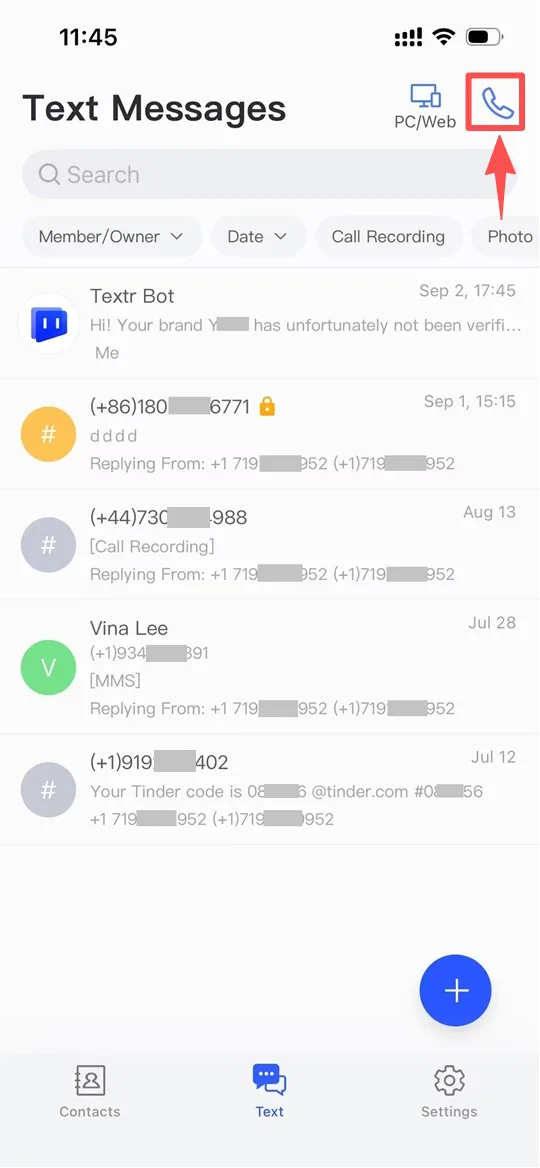
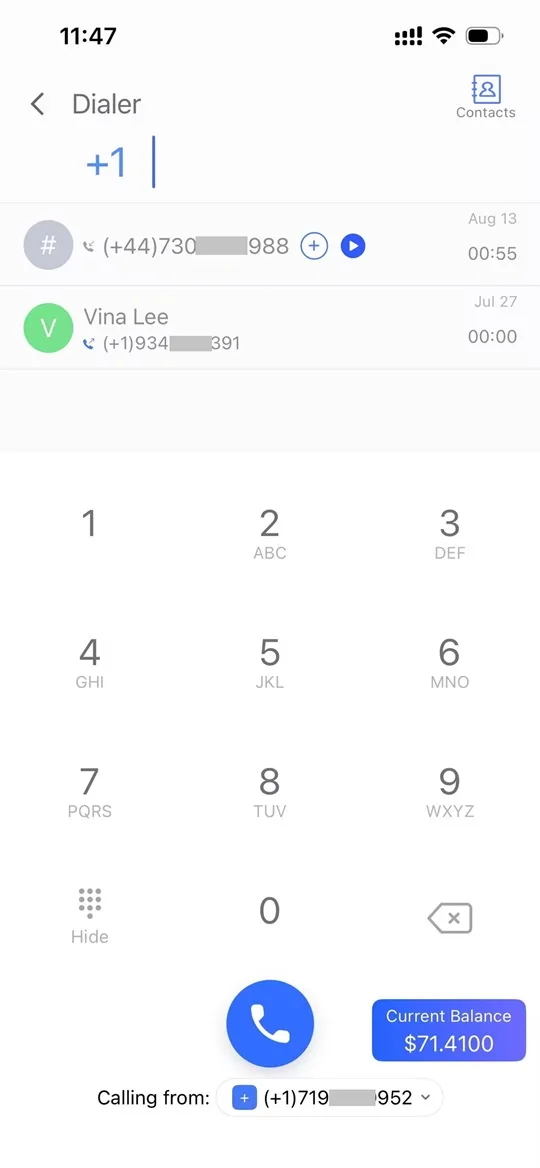
The call will be placed from your assigned Textr Team number. The recipient sees your Textr Team number as the caller ID.
Receiving Calls
When someone calls your Textr Team number, you receive a push notification on your mobile device. You can:
- Answer: Tap the green button to accept the call
- Decline: Tap the red button to reject the call
- Send to voicemail: Decline the call and let the caller leave a message
If you have multiple devices logged in, incoming calls ring on all devices simultaneously. Answer on whichever device is most convenient.
Tip: For advanced call routing, you can set up IVR (Interactive Voice Response) menus to direct callers to the right team member or department.
Call Quality Tips
Textr Team provides high-quality voice calls, but your call experience heavily depends on your network conditions. For the best call quality, we recommend that you:
- Use a stable Wi-Fi connection whenever possible.
- Wear a headset to reduce echo and background noise.
- Avoid areas with poor signal reception when using mobile data.
- Close other bandwidth-heavy applications during active calls.
If you continue to experience call quality issues, please contact our support team for assistance.
Call History and Recording
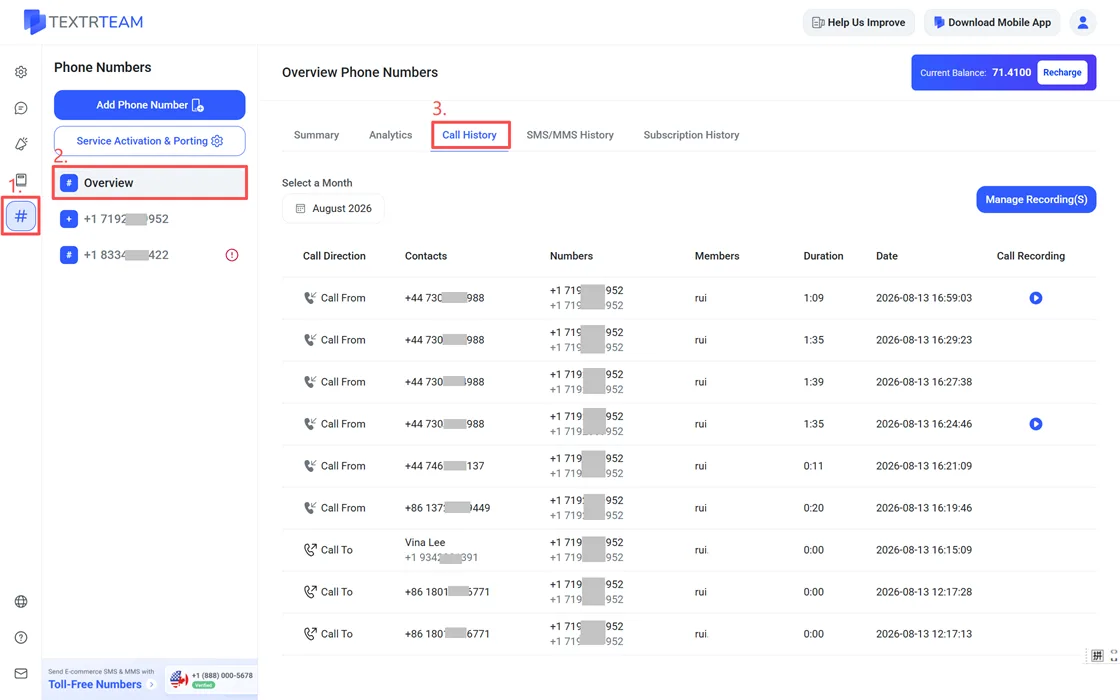
All calls are logged automatically. Go to Phone Numbers > Overview > Call History to view incoming, outgoing, and missed calls. You can filter by date and phone number.
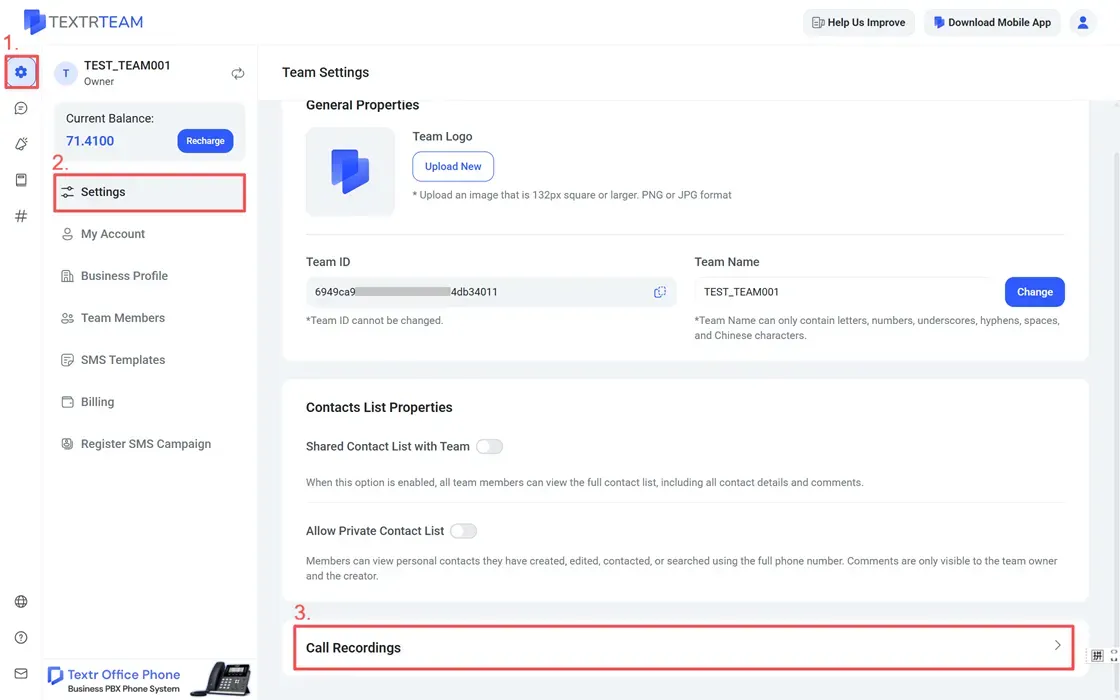
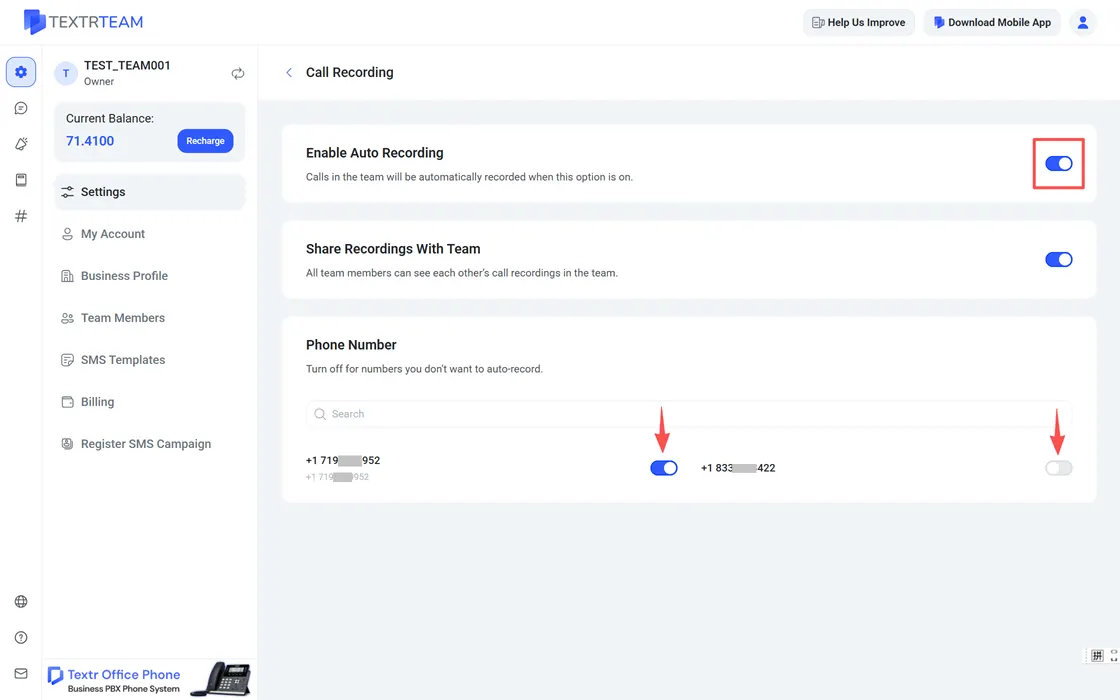
To enable auto-recording, go to Settings > Team Settings > Call Recording, toggle Enable Auto Recording, and select which numbers should be recorded. Recordings appear in the call history and can be played back directly in the app.
Tip: While on a call, you can add real-time comments that appear in the conversation history. This is useful for logging key details without writing them down separately after the call.
Voicemail and Transcription
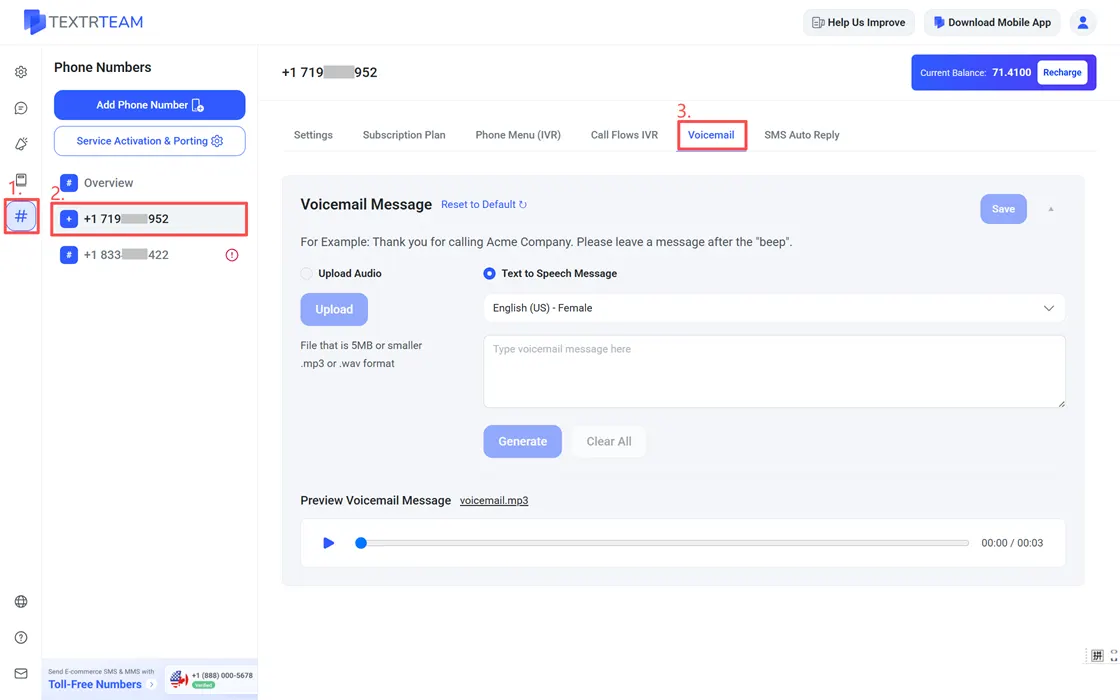
Set up voicemail on the web so callers can leave messages when you are unavailable. Go to # Numbers > [Your Number] > Voicemail to upload a custom greeting or generate one using text-to-speech.
Textr Team automatically transcribes voicemail messages so you can read them instead of listening. Transcriptions appear in your call history alongside the audio recording.