SMS templates are saved message texts your team can insert into conversations with one click, so common replies such as shipping updates or appointment reminders stay consistent and fast to send.
Where to Find Templates
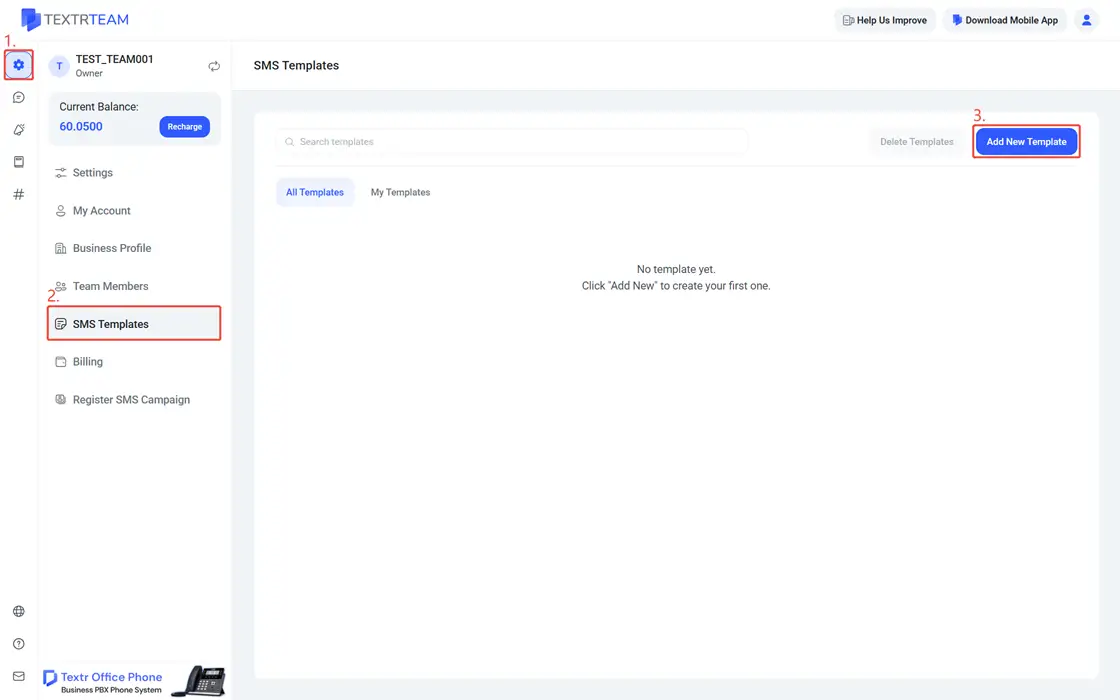
Go to Settings > SMS Templates in the sidebar. The page shows a search box, Delete Templates, Add New Template, and two tabs: All Templates and My Templates.
Create a Template
- Click Add New Template.
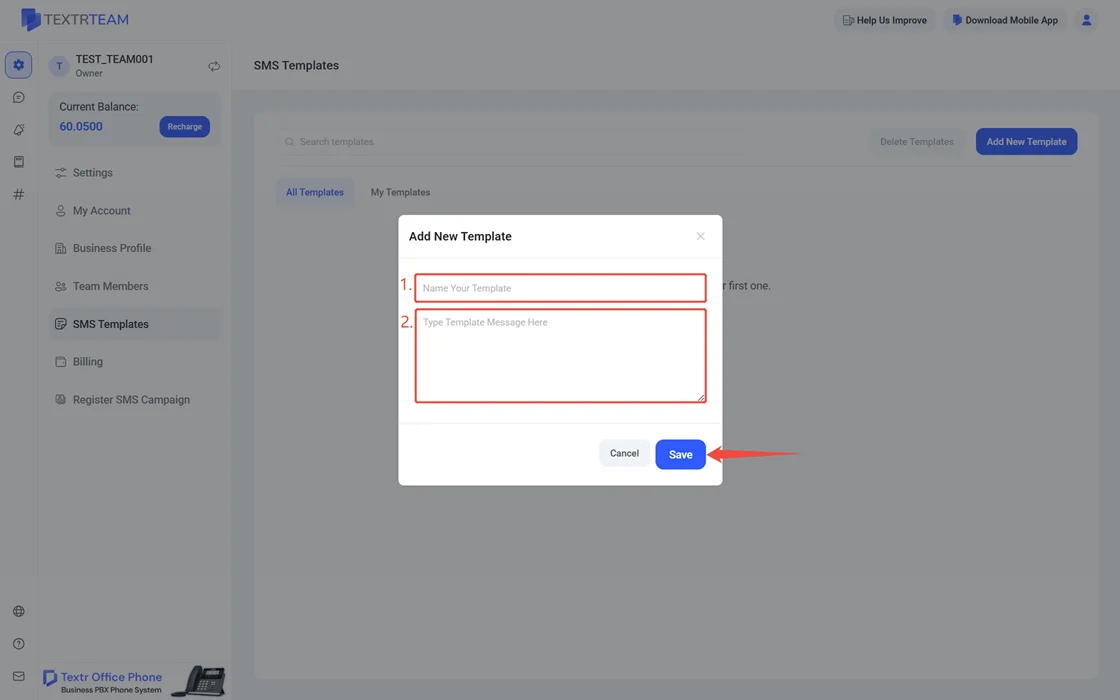
- Enter a Template Name that hints at the use, for example "Shipping update".
- Enter the Message Text. Keep it ready to send as is, with placeholders your team fills in before sending.
- Save. The template appears in the list with its creator's name and role.
A practical example for an online store: "Hi [Customer Name], your ABC Company order #[Order Number] has shipped. Track it here: [Tracking URL]. Reply HELP for help. Reply STOP to opt out."
Edit and Delete Templates
- Click the pencil icon on a template row to edit its name or text.
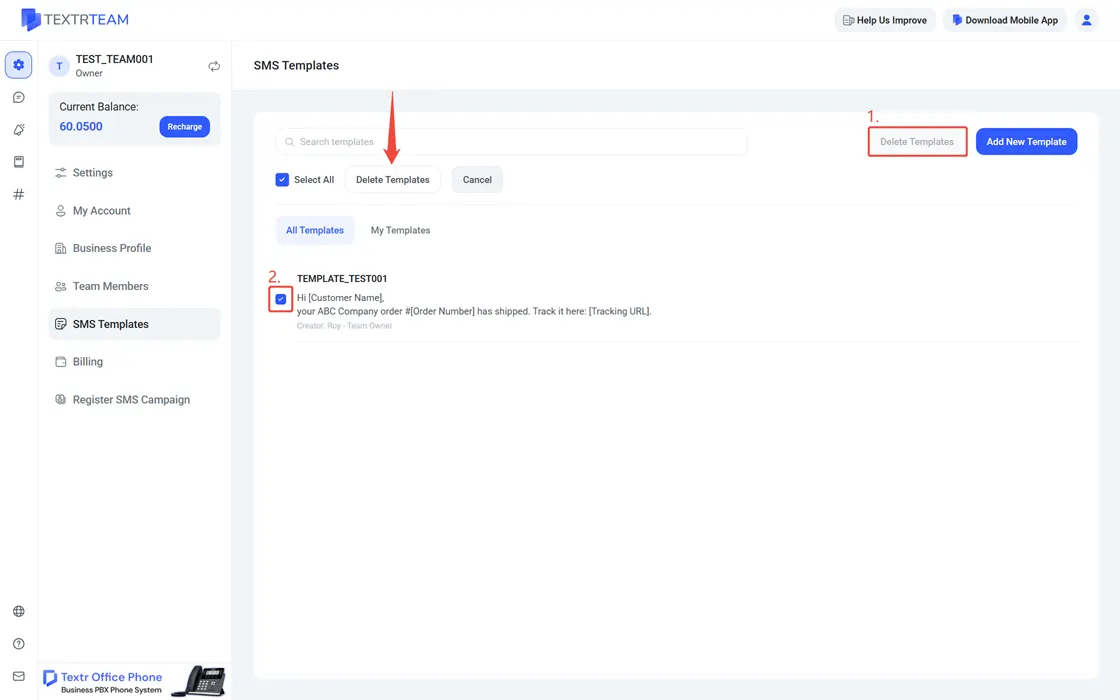
- To remove templates, select them and click Delete Templates. Deleted templates are no longer available to the team, so confirm with the Owner before removing shared ones.
Note: Team Members can create and use their own templates; only the Owner can delete templates created by others. Role details are in Configure Your Team Workspace.
Use a Template in a Conversation
- Open the conversation in Messages.
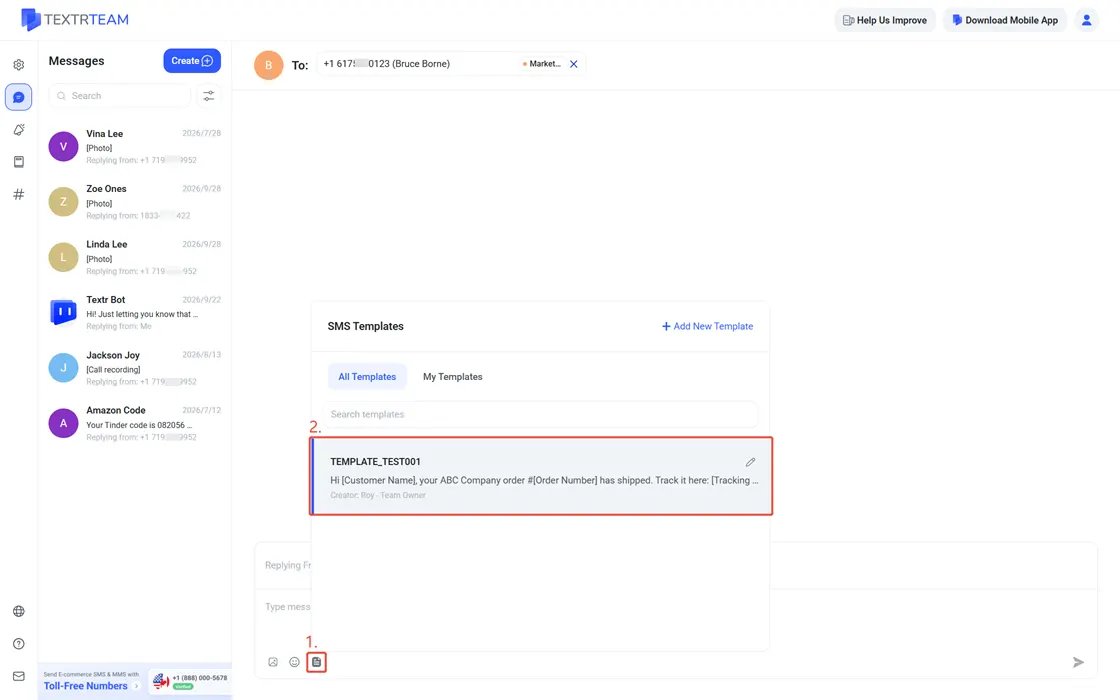
- In the composer toolbar, click the template icon (next to the image and emoji icons).
- Pick a template; its text is inserted into the input box.
- Adjust any placeholders, then send as a normal message. Sending basics are covered in Start Texting.