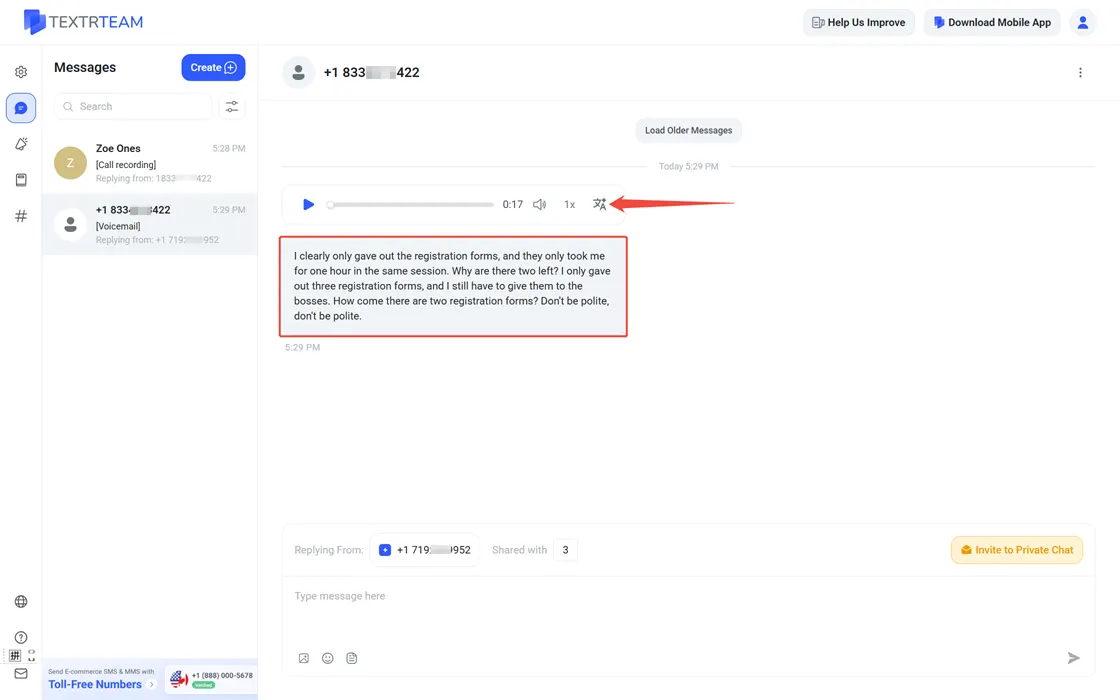
Voicemail makes sure callers can leave a message when your team cannot answer. Textr Team automatically transcribes voicemail messages, so you can read them instead of listening to the audio. This guide covers how to set up a greeting on the web, how callers reach voicemail, and where to find transcripts.
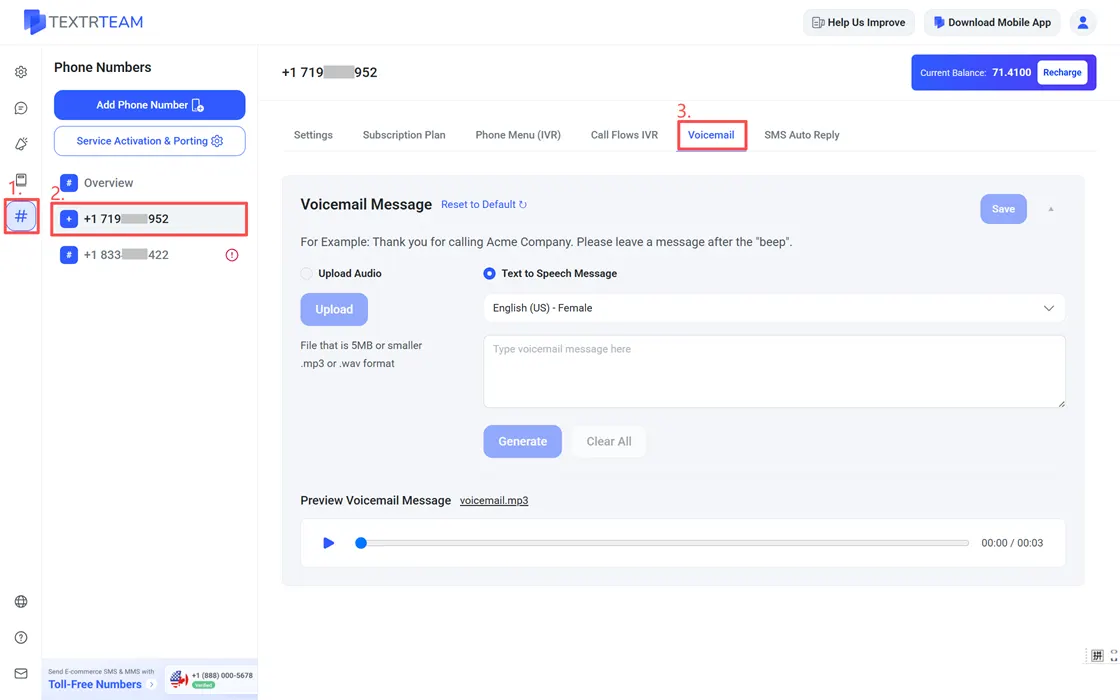
Set Up Voicemail on the Web
- Sign in to Textr Team on the web.
- Go to # Numbers > [Your Number] > Voicemail.
- Choose one of two options:
- Upload audio file: Record or upload your own greeting.
- Generate using text-to-speech: Type the greeting text and let Textr Team generate the audio.
Use Preview Voicemail message to check the greeting before saving.
How Callers Reach Voicemail
When a call to your Textr Team number is declined or not answered, the caller can leave a voicemail. Under the number's Phone Menu (IVR) or Call Flows IVR settings, you can choose the action and destination for calls that are not answered, so callers are routed to voicemail automatically.
Tip: You can also set SMS auto-replies for missed calls under the number settings, with separate messages for missed calls with a voicemail and missed calls without one.
Voicemail Transcription
Textr Team automatically transcribes voicemail messages so you can read them instead of listening. Transcriptions appear in your call history alongside the audio recording. Both the audio and the transcript are available in the app and on the web. See How to View Call History. Find the voice message and click the Transcribe button (select a language or use auto-detect). The transcription will appear below.