
The phone menu is the first layer of call handling on your Textr Team number: it is the greeting and key menu every caller hears when the call starts. A well-built menu routes callers to the right person without any manual transfer. For second-layer menus for specific needs such as order lookup, see How to Set Up Call Flows (IVR).
Where to Find the Phone Menu
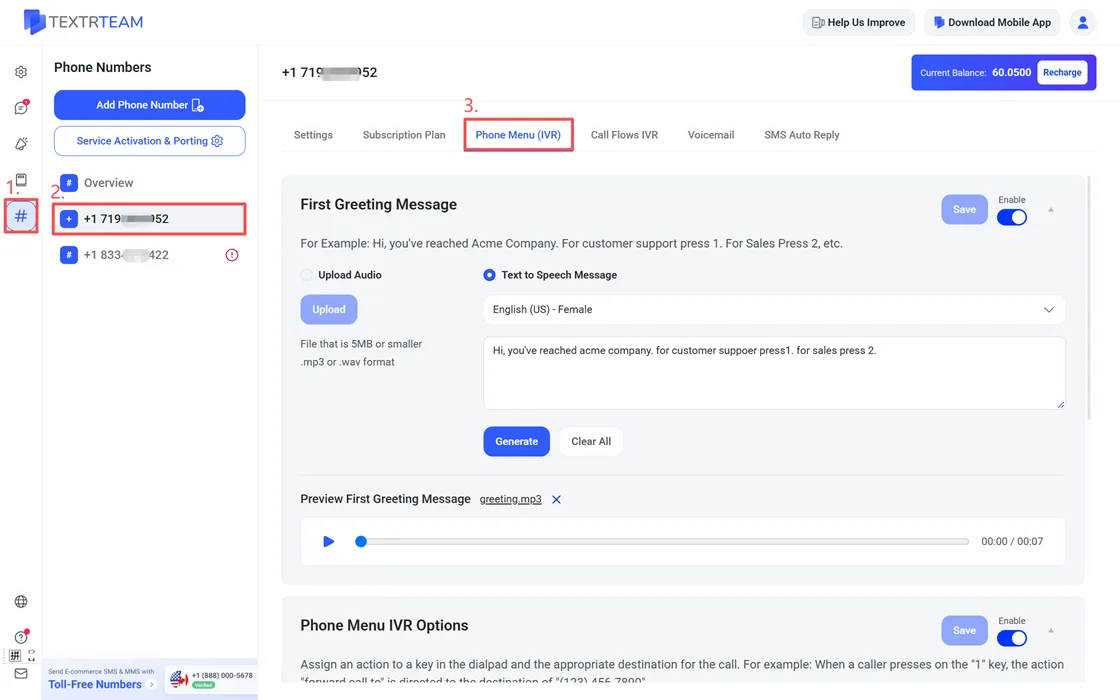
- Go to # Numbers.
- Select the number you want to configure.
- Open the Phone Menu (IVR) tab.
Set Up the Greeting
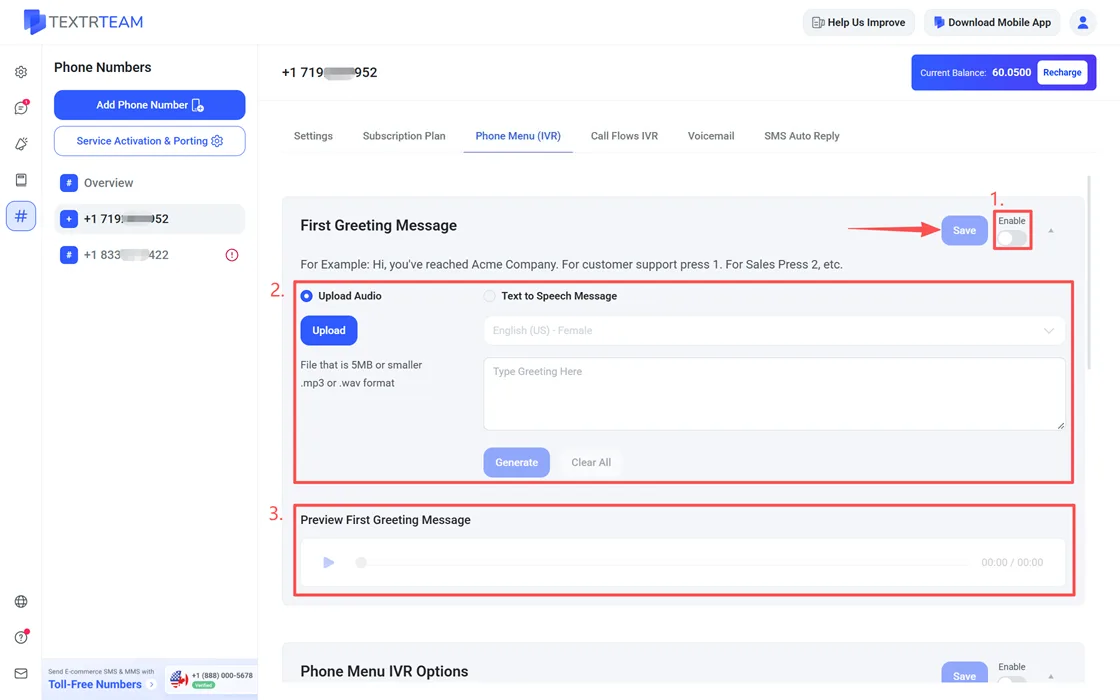
- In the First Greeting Message block, turn on Enable.
- Choose how to create the greeting:
- Upload Audio: click Upload and select a file. The file must be 5MB or smaller, in .mp3 or .wav format.
- Text to Speech Message: pick a voice (for example, English (US) - Female), type your greeting text, then click Generate. Use Clear All to empty the text box.
- Click the player under Preview First Greeting Message to listen before saving.
- Click Save.
A greeting that works well tells callers what to press, for example: "Hi, you've reached ABC Company. For sales press 1. For customer support press 2."
Assign Keys to Actions
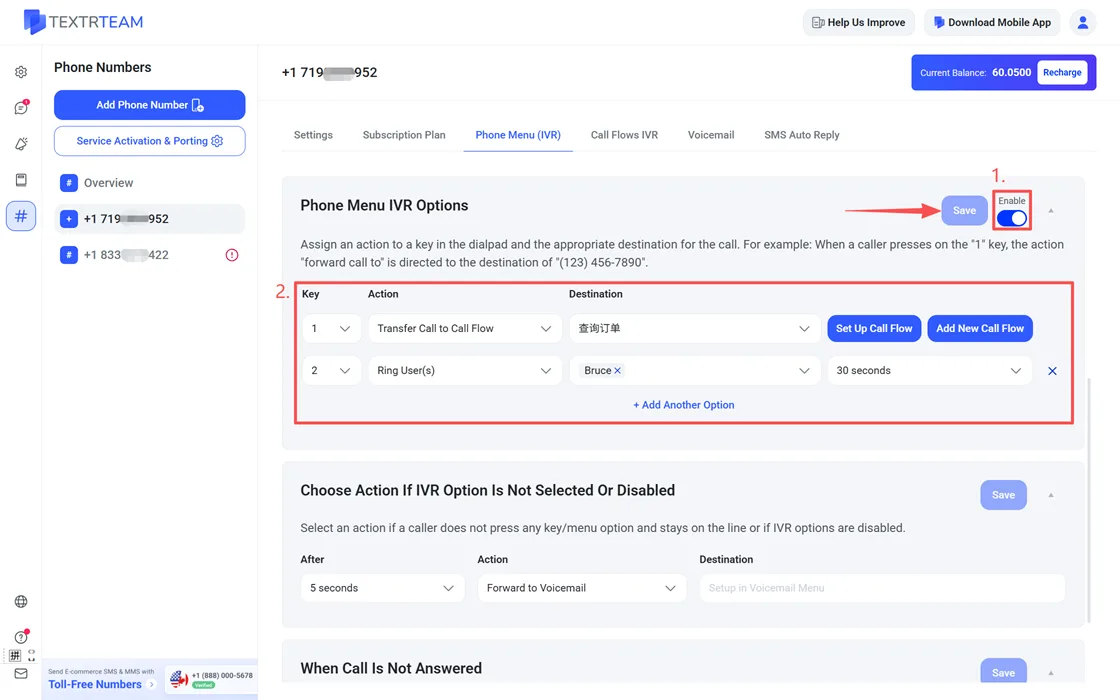
- In the Phone Menu IVR Options block, turn on Enable.
- For each row, set Key, Action, Destination, and the ring duration (for example 30 seconds).
- The Action list includes Ring User(s), Transfer Call to Call Flow, Forward Call to Outside Number, Forward to Voicemail, Play Custom Message, and Repeat First Greeting.
- Click + Add Another Option to add more keys, then click Save.
Action and Destination Options
Each key row pairs an Action with a Destination, and the Destination field changes with the action you pick:
| Action | What it does | Destination |
|---|---|---|
| Ring User(s) | Rings team members so someone can pick up | One or more members, or All Users |
| Transfer Call to Call Flow | Sends the caller into a second-layer call flow | A flow created under Call Flows IVR; the Set Up Call Flow and Add New Call Flow buttons appear next to the field |
| Forward Call to Outside Number | Forwards the call to a number outside Textr Team | Type the phone number to forward to |
| Forward to Voicemail | Sends the caller to your voicemail | Follows your voicemail setup; record or generate the greeting under the Voicemail tab first |
| Play Custom Message | Plays a custom audio clip to the caller | Upload the audio clip to play |
| Repeat First Greeting | Replays the first greeting so callers can hear the options again | No destination needed |
A typical small-business setup looks like this:
| Key | Action | Destination |
|---|---|---|
| 1 | Ring User(s) | The sales member on duty |
| 2 | Transfer Call to Call Flow | An order lookup flow (see How to Set Up Call Flows (IVR)) |
| 3 | Forward to Voicemail | Voicemail, for calls outside business hours |
When you choose Transfer Call to Call Flow, the Destination field lists the call flows you have created. The Set Up Call Flow button opens the selected flow for editing, and Add New Call Flow creates one without leaving the page.
Cover the Cases Where No Key Is Pressed
The Choose Action If IVR Option Is Not Selected Or Disabled block applies when IVR options are disabled, or when a caller stays on the line without pressing a key.
- Set After: how long to wait, for example 5 seconds.
- Set Action: for example Forward to Voicemail.
- If you forward to voicemail, record or generate the greeting under the Voicemail tab first, as described in How to Set Up Voicemail and Transcription.
- Click Save.
Cover Unanswered Calls
The When Call Is Not Answered block applies when nobody picks up after the menu actions run, or when the menu is disabled. Set Action (for example Forward to Voicemail) and Destination, then click Save.