
Overview
Once you have phone numbers in Textr Team, you can start calling and texting or assign them to your team members, manage subscription plans, and occasionally change or replace numbers. This guide covers all three areas so you can keep your team organized and connected.
Assign Numbers to Team Members
Phone numbers are not automatically assigned when subscribed. An Owner must manually assign each number to a team member.
How to assign a number:
- Go to # Numbers
- Click on the number you want to assign
- Under Settings > Assign User, select a team member from the dropdown
- Click Assign to save changes
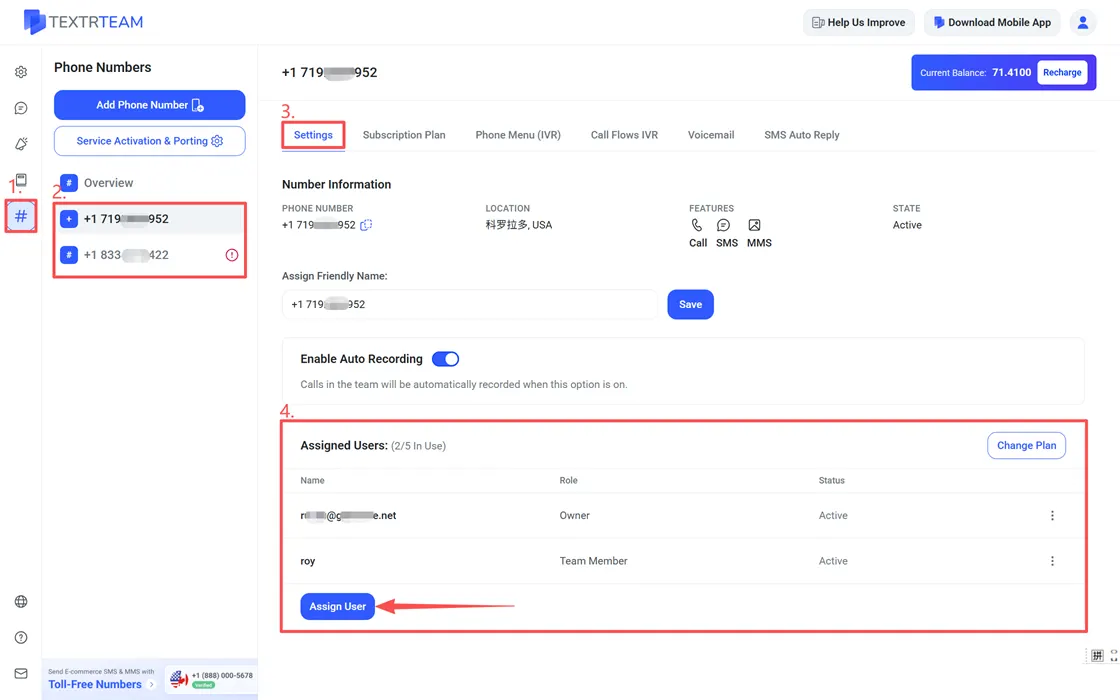
The assigned member will see the number in their account immediately.
Who can assign numbers:
Only Owners can assign and reassign phone numbers. Team Members cannot assign numbers to themselves or others. If a Team Member needs a number, an Owner must assign it.
Reassigning a number:
You can reassign a number at any time by following the same steps above and selecting a different team member. The conversation history tied to that number remains in the team and becomes accessible to the newly assigned member.
Manage Subscription Plans
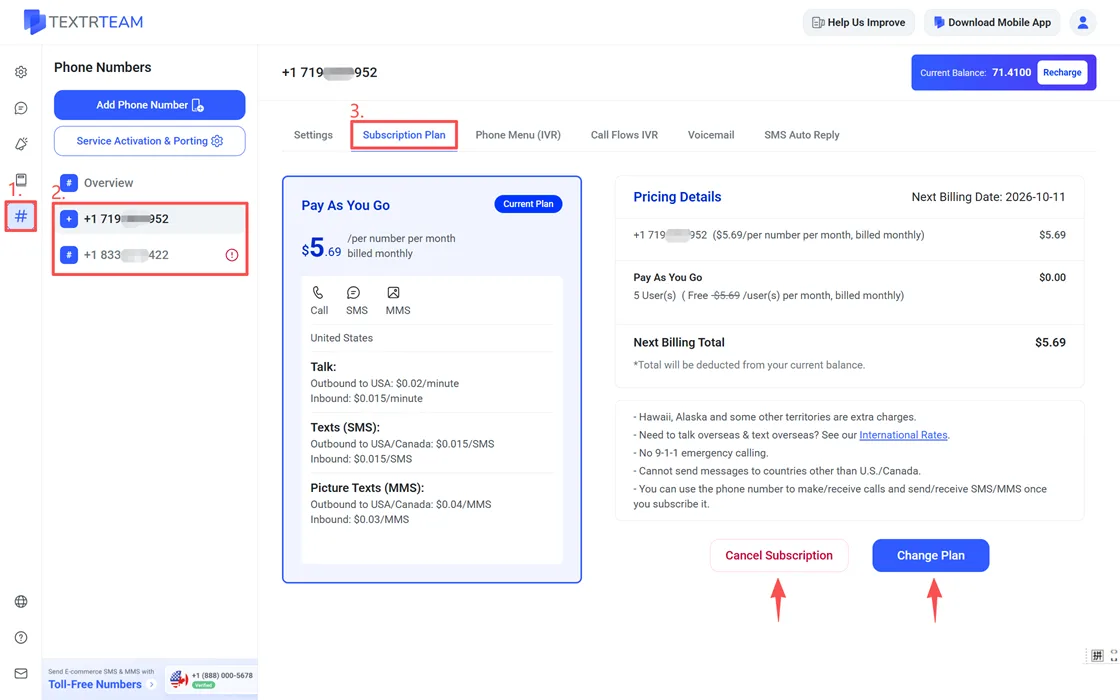
Each phone number has its own subscription plan. You can view and manage plans from # Numbers > [Your Number] > Subscription Plan. You can view current plan details, like included features, rates, and billing information.
Change your plan:
Click Change Plan to switch to a different plan tier or cancel a plan. Changes take effect at the start of your next billing cycle.
Cancel a subscription:
If you no longer need a number, click Cancel Subscription to confirm.
For step-by-step instructions on changing a number while keeping your account, see our dedicated guide: How to Change the Phone Number.
Billing frequency:
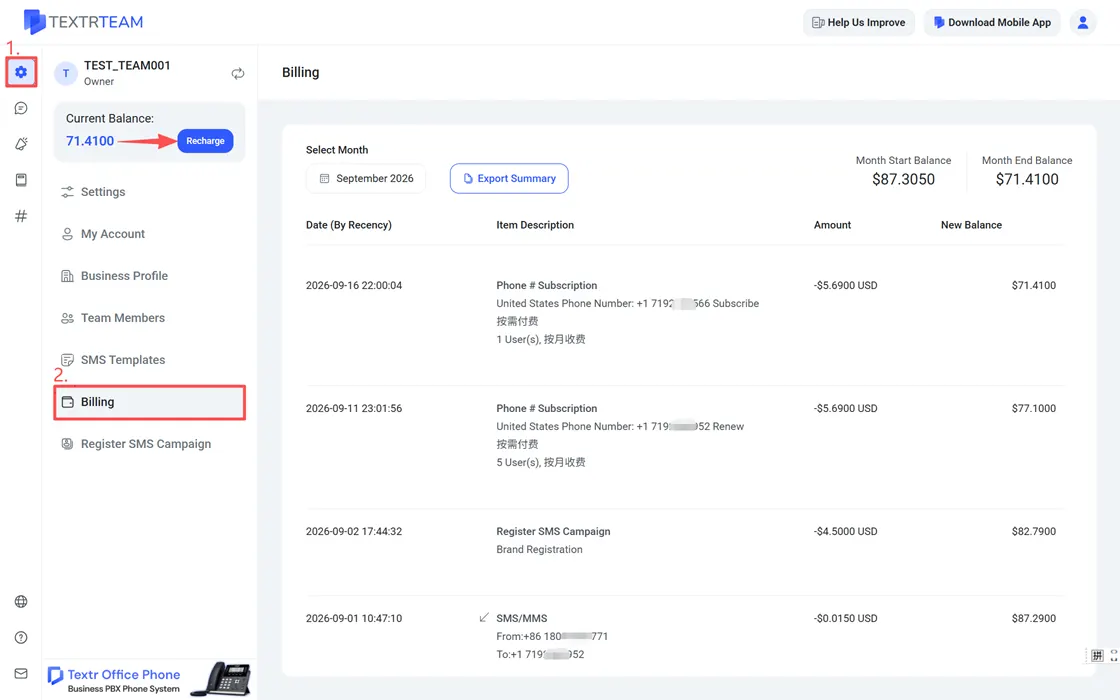
All plans are billed monthly under Pay As You Go pricing. Your balance is deducted automatically on the billing date. To check your current balance or add funds, go to Settings > Recharge.
View billing history:
Go to Settings > Billing to see a full record of charges, including dates, descriptions, and amounts. You can filter by month and export a summary for accounting purposes.
Important Notes
- Timing: Cancellation takes effect at the end of the current billing cycle; the number remains active until then.
- Access: Assigned team members lose access immediately once the cycle ends.
- Data: Conversation history and recordings remain in your account.
- Recovery: Canceled numbers can be recovered within 7 days. Recovery is not guaranteed after this period.